

2.1.1.2 OVA Image-Based Deployment
Note:
1.The following procedure is based on a VMWare / Proxmox, which is an example for your
reference when using other virtualization platforms.
2.When creating a virtual machine, please allocate a network card in advance. Otherwise,
the installation will fail.
Steps
Step 1. Import the Open Virtual Appliance (OVA) template.
During the image import process, the console will display the installation progress.The deployment finishes after the import is complete, without the need to perform additional operations.
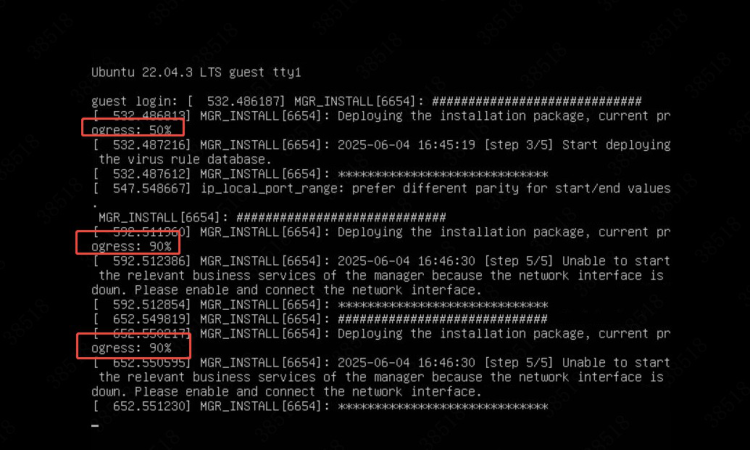
Step 2. Configure network settings.
- Log in to the web console of the NovaGuard manager, press Alt+F9 to go to the IP address configuration page, select Set Management IP Address, and click OK, as shown in the following figure.
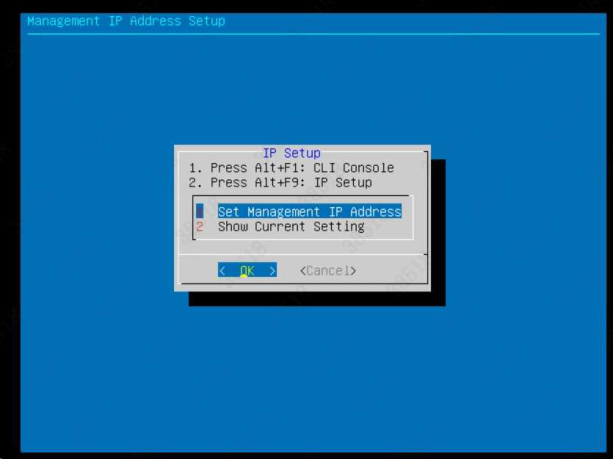
- Enter the password of the admin account, and click OK . The default account and password both are "admin".
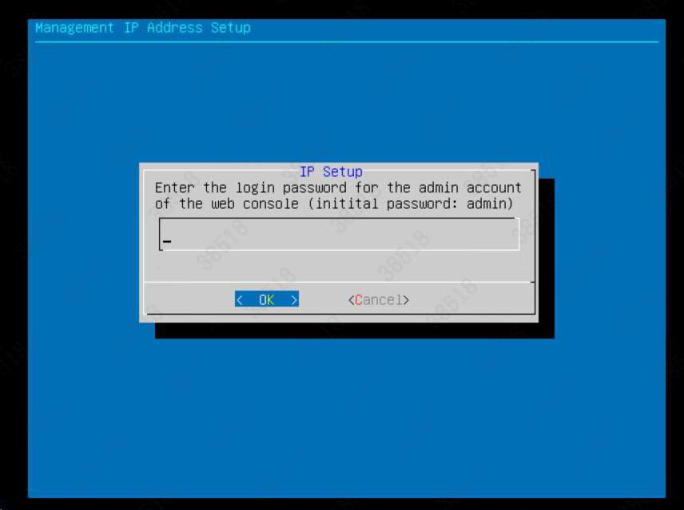
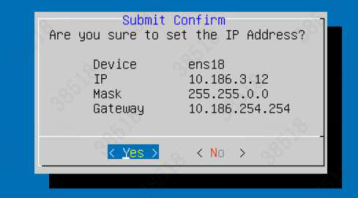
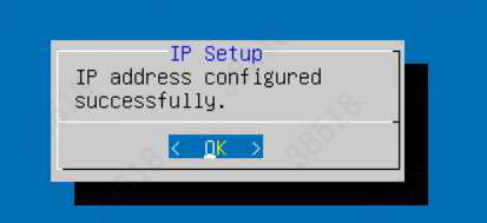
- Configure the corresponding IP address, subnet mask, and gateway IP address as instructed, and save the configurations.
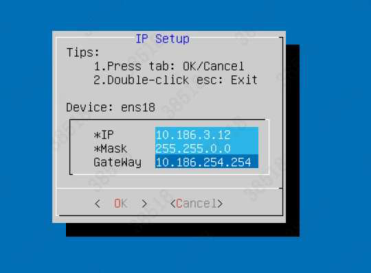
Step 3. Configure the DNS network.
Note:
Supported browsers include Internet Explorer 10 and later, Firefox, Google Chrome, 360,
and Microsoft Edge.
-
Based on the modified IP information, log in to the EPP manager (https://x.x.x.x). The default account is "admin" and the default password is "admin".
-
Go to System - System - Network - Interfaces, and specify the IP address configured for the management interface of the NovaGuard manager, as shown in the following figure.

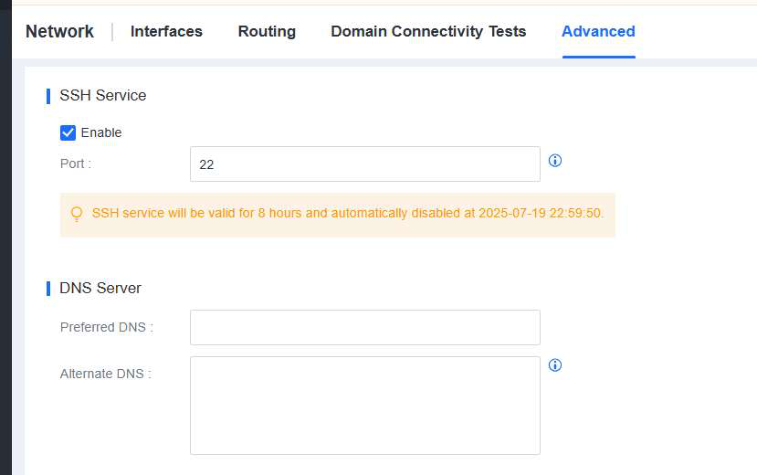
- Configure DNS servers. Go to System - System - Network - Advanced, and configure a preferred DNS server and an alternate DNS server, as shown in the following figure.
Note:
The NovaGuard manager requires DNS servers to resolve domain names for antivirus
database updates.
Step 4. Configure routing information.
Go to System - System - Network - Routing, and configure a route, as shown in the following figure.

Note:
The NovaGuard manager requires a route to connect to the Internet and communicate with
endpoints.
