

2.1.2 Cascade Deployment
Scenarios
For example, a group company with headquarters and multiple branches has over 10,000 endpoints. You can deploy NovaGuard at headquarters and branches for endpoint management. It enables the headquarters to centrally and dynamically allocate licenses to or revoke licenses from the branches. It allows a higher-level NovaGuard manager to view the security status and connected endpoints of a lower-level NovaGuard manager.
Cascade deployment supports up to three levels, and each NovaGuard can connect to up to 20 NovaGuard managers. The following figure shows a cascade NovaGuard environment.
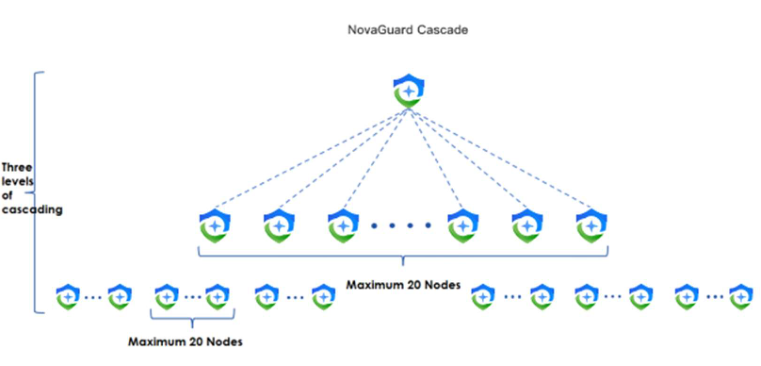
Deployment requirements:
Cascade deployment requirements are as follows.
-
Deploy the NovaGuard manager at both the headquarters and branches.
-
Activate all licenses for headquarters NovaGuard and allocate licenses from headquarters NovaGuard to branch NovaGuard.
-
Evaluate the number of licenses each branch needs based on the number of PCs and servers.
Cascade configuration:
1. Deploy the NovaGuard manager at both the headquarters and branches.
Select servers for the headquarters and branches based on their endpoint quantities and deploy the NovaGuard manager on these servers.
2. Activate headquarters NovaGuard. Activate all licenses for headquarters NovaGuard and allocate licenses from headquarters NovaGuard to branch NovaGuard.
3. Generate a connection key on the branch NovaGuard manager.
Log in to a lower-level NovaGuard manager, go to System - Branches Branches, and click Connection Key, as shown in the following figure.

Enter the current account's password, and click Generate, as shown in the following figure.
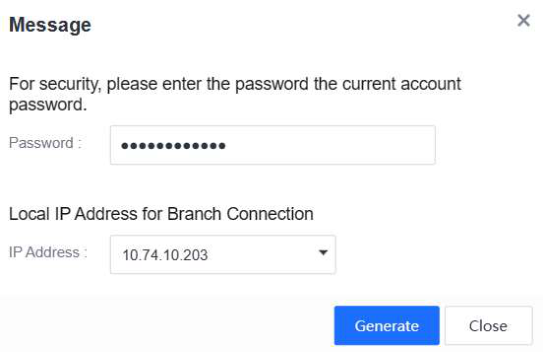
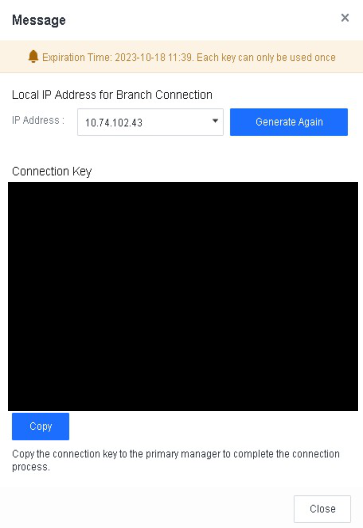
Click Copy to copy the connection key to a higher-level NovaGuard manager to complete the connection process.
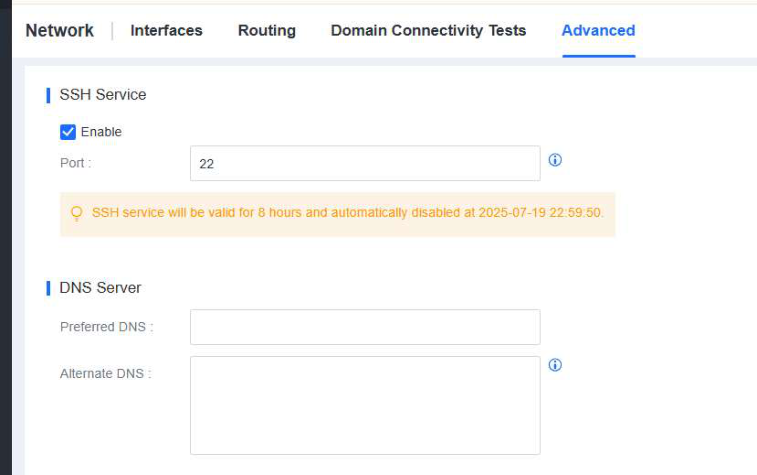
4. Enable the Secure Shell (SSH) service for the branch NovaGuard manager. Log in to a lower-level NovaGuard manager, go to System - System Network - Advanced, and check Enable in SSH Service, as shown in the following figure.
5. Connect the branch NovaGuard manager to the headquarters NovaGuard manager.
Log in to a higher-level NovaGuard manager, go to System - Branches Branches, and click Add Branch Manager, as shown in the following figure.
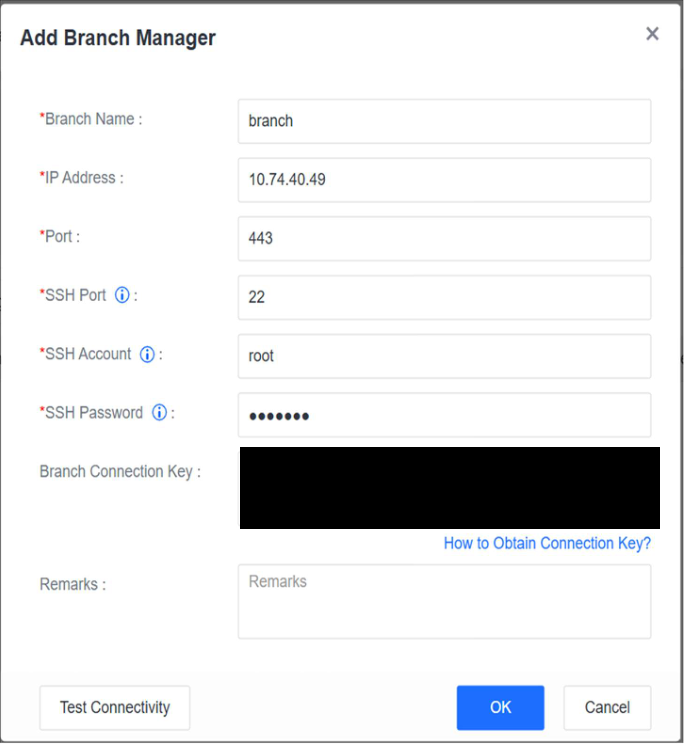
Specify the branch name, IP address, port, SSH port, administrator account username and password, and branch connection key, and click OK, as shown in the following figure.
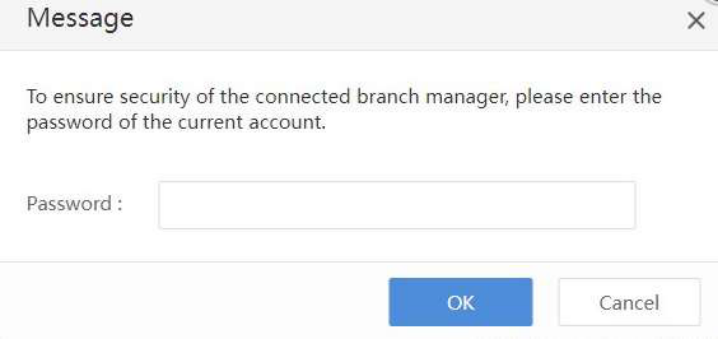
Enter the password of the current account, and click OK. Then, you can see the added branch NovaGuard manager, as shown in the following figure.
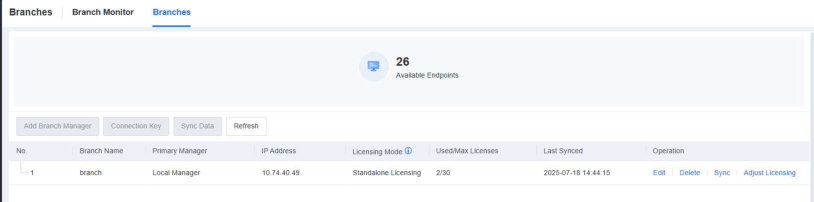
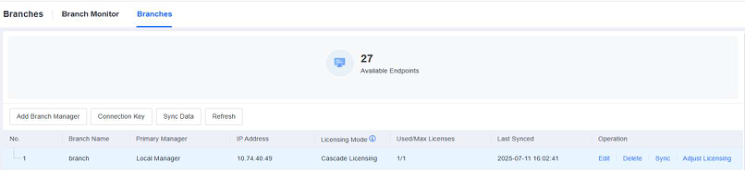
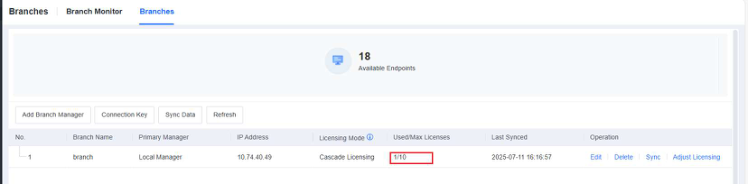
The Branches page includes the Branch Name, IP Address, Licensing Mode, Connected/Max Endpoints, Last Synced, and Operation columns.
Licensing Mode: There are two licensing modes for lower-level NovaGuard managers in cascade deployment scenarios: standalone licensing and cascade licensing . In standalone licensing mode, lower-level NovaGuard managers have independent licenses, which the relevant higher-level NovaGuard manager cannot adjust dynamically. In cascade licensing mode, licenses of lower-level NovaGuard managers are allocated by the relevant higher-level NovaGuard manager, and the high-level NovaGuard manager can adjust these licenses dynamically according to actual needs.
Connected/Max Endpoints: The number of connected endpoints and the maximum number of endpoints allowed on lower-level NovaGuard managers.
6. Allocate licenses from headquarters NovaGuard to branch NovaGuard.
Evaluate the number of licenses each branch needs and allocate licenses from headquarters NovaGuard to branch NovaGuard.
Go to System - Branches - Branches, as shown in the following figure.
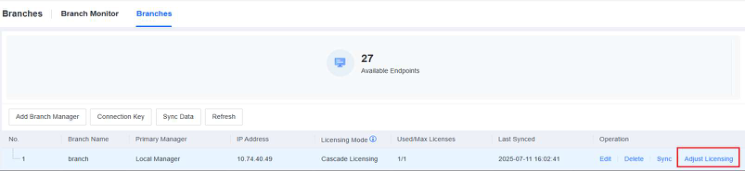
Select a branch, and click Adjust Licensing to go to the Adjust Licensing page, as shown in the following figure.
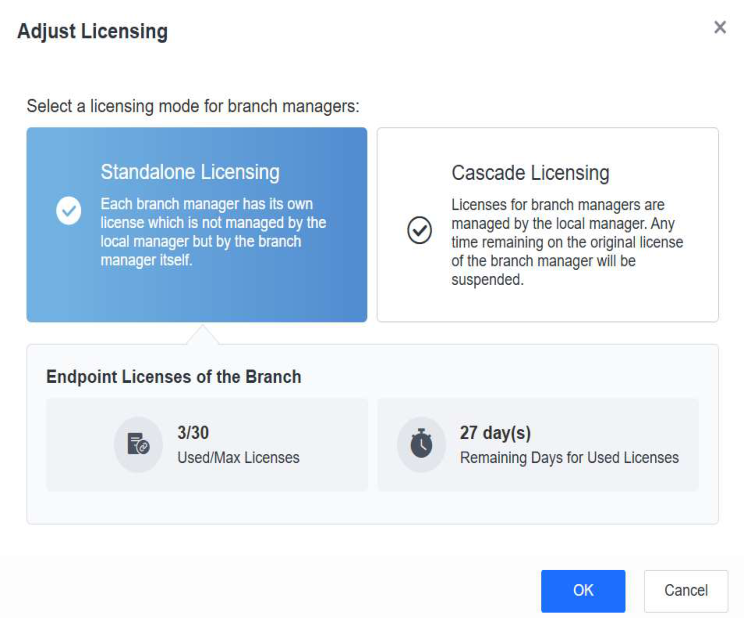
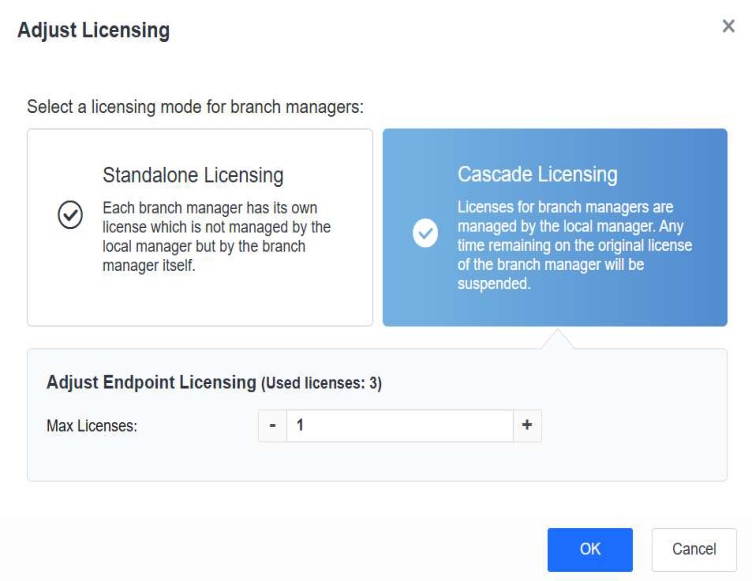
You can select Standalone Licensing or Cascade Licensing as the licensing mode of the lower-level NovaGuard manager. In standalone licensing mode, lower-level NovaGuard managers have independent licenses, which the relevant higher-level NovaGuard manager cannot adjust dynamically. In this example, select Cascade Licensing, and then specify the maximum number of endpoints and servers and the license period for the lower-level NovaGuard
manager.
After you adjust cascade licensing successfully, the following page appears.
7. Install the NovaGuard agent at both the headquarters and branches.
The effect of the Cascade deployment:
1. View the security status of a lower-level NovaGuard manager.
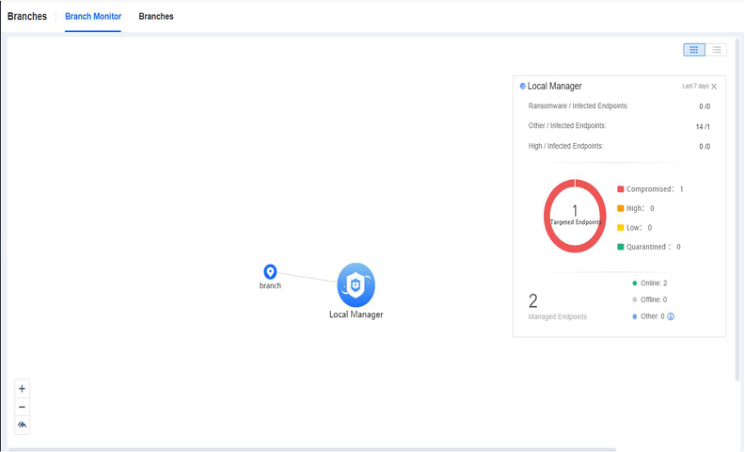
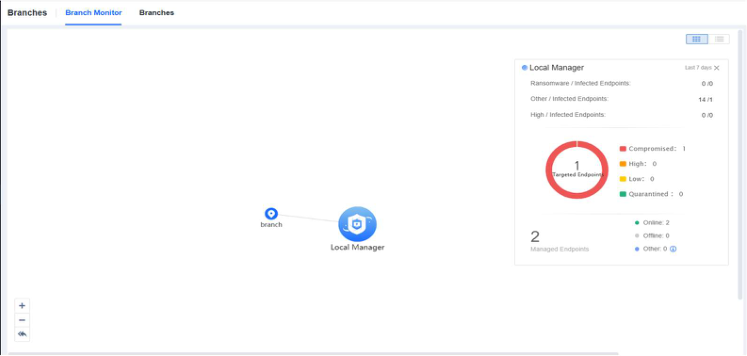
Go to System - Branches - Branch Monitor, and move the pointer over the icon of a lower-level NovaGuard manager to view its security status or click Visit Branch Manager to go to its login page, as shown in the following figure.
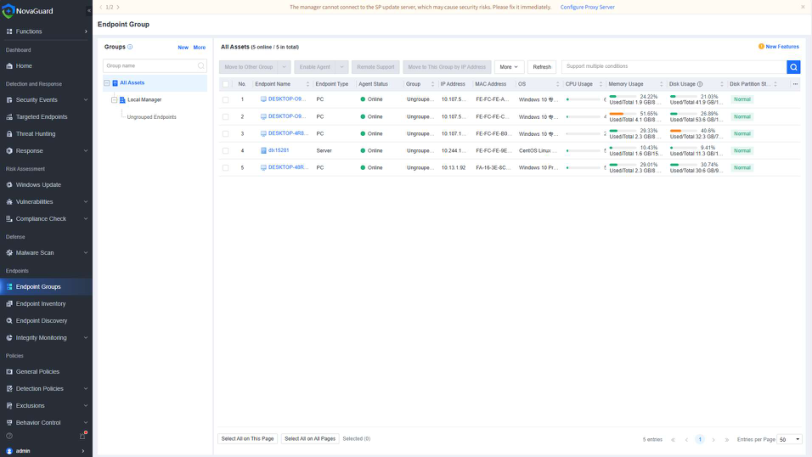
- View the connected endpoints of a lower-level NovaGuard manager.
Go to Endpoints - Endpoint Groups, as shown in the following figure.
2. Implement cascade licensing.
Cascade licensing is suitable for scenarios where a certain number of licenses need to be allocated and revoked dynamically across branches.
After activating a certain number of licenses for a higher-level NovaGuard manager without activating any license for lower-level NovaGuard managers, you can allocate licenses to or revoke licenses from lower-level NovaGuard managers on the higher-level NovaGuard manager.
Go to System - Branches - Branches, as shown in the following figure.
Select a branch, and click Adjust Licensing to go to the Adjust Licensing page, as shown in the following figure.
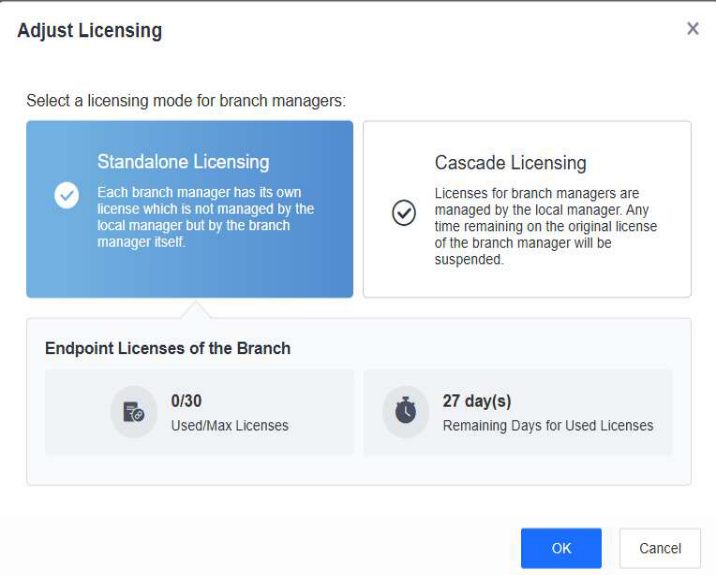
You can select Standalone Licensing or Cascade Licensing as the licensing mode of the lower-level NovaGuard manager. In standalone licensing mode, lower-level NovaGuard managers have independent licenses, which the relevant higher-level NovaGuard manager cannot adjust dynamically. In this example, select Cascade Licensing, and then specify the maximum number of PCs and servers and the license period for the lower-level NovaGuard manager.
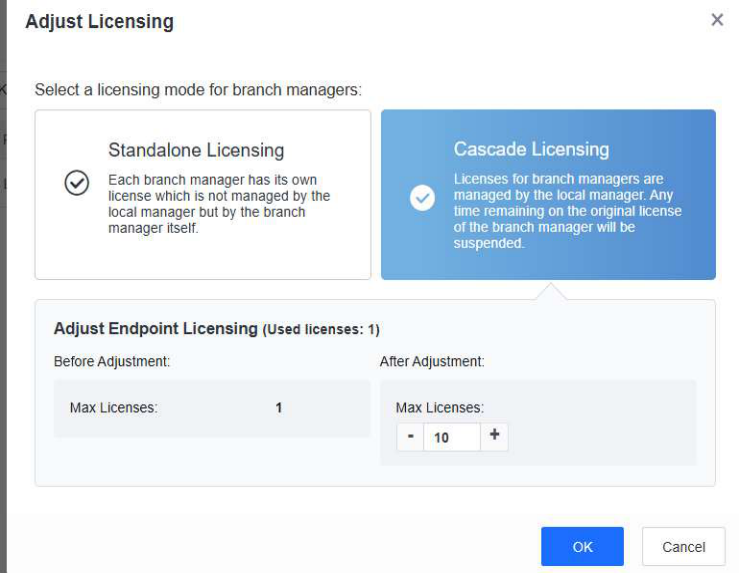
After you adjust cascade licensing successfully, the following page appears.
3. Go to a lower-level NovaGuard manager from the higher-level NovaGuard manager for management operations. As shown in the following figure, you can go to the management page for a lower-level NovaGuard manager by clicking Visit Branch Manager on the Branch Monitor tab of the relevant higher-level NovaGuard manager.
Note:
- If the updated number of licenses for a lower-level NovaGuard manager is smaller than
the number of connected PCs and servers, excess licenses are revoked in the following
order: disabled endpoints > offline endpoints > online endpoints.
- Endpoints in Endpoint Groups whose status is Not Licensed or Agent Uninstalled do
not consume licenses.
- In cascade licensing scenarios, you need to activate licenses for a higher-level NovaGuard
manager. Then, you can dynamically adjust licenses for lower-level NovaGuard managers on
the higher-level NovaGuard manager node.
