

2.3.2.4 Installation via an AD Domain
1. Scenario In scenarios where you have deployed a Microsoft AD domain controller in the internal network to which endpoints are connected for unified management, you can automatically install the silent NovaGuard agent package upon the startup of endpoints by distributing a group policy via the domain controller.
2. Procedure
The procedure for NovaGuard agent installation via an AD domain is as follows: Download the installer:
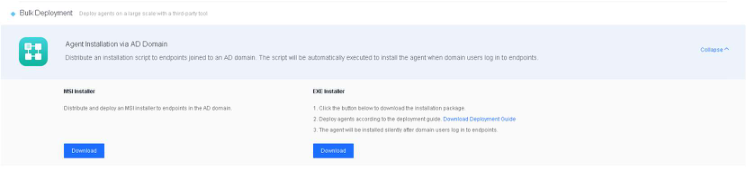
Download the installer and deployment guide, as shown in the following figure.
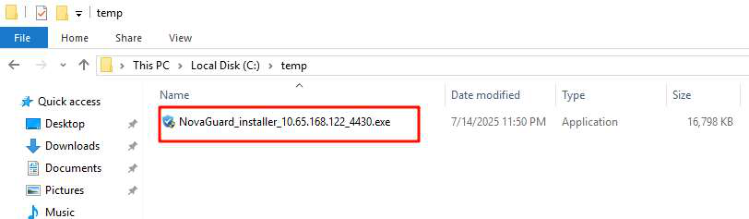
The name of the downloaded installer contains the IP address and the port to connect to the NovaGuard manager, as shown in the following figure. Do not change the installer's name. Otherwise, the installation will fail.
Create a group policy object:
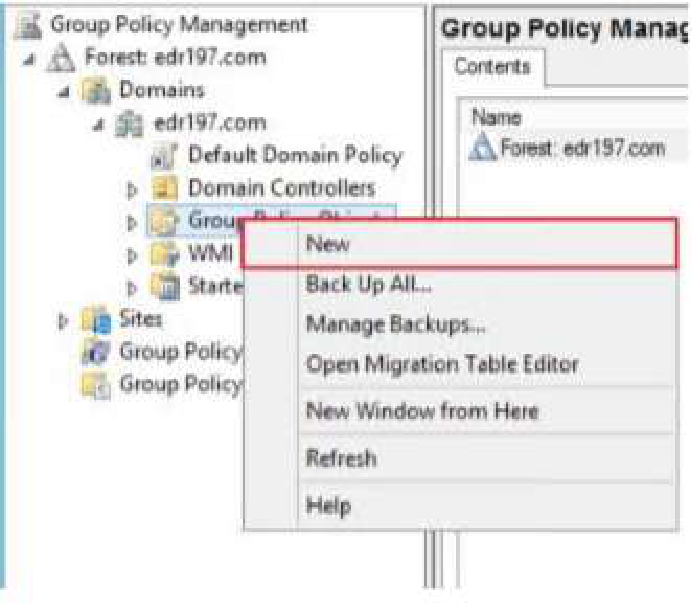
Log in to the domain server, open Group Policy Manager, and create a Group Policy Object, as shown in the following figure.
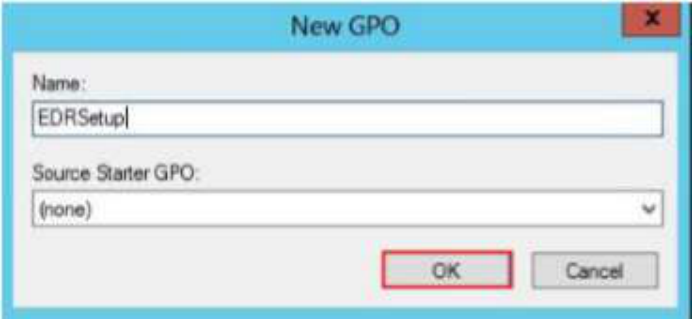
Enter a name for the group policy object and click OK .
Edit the group policy object
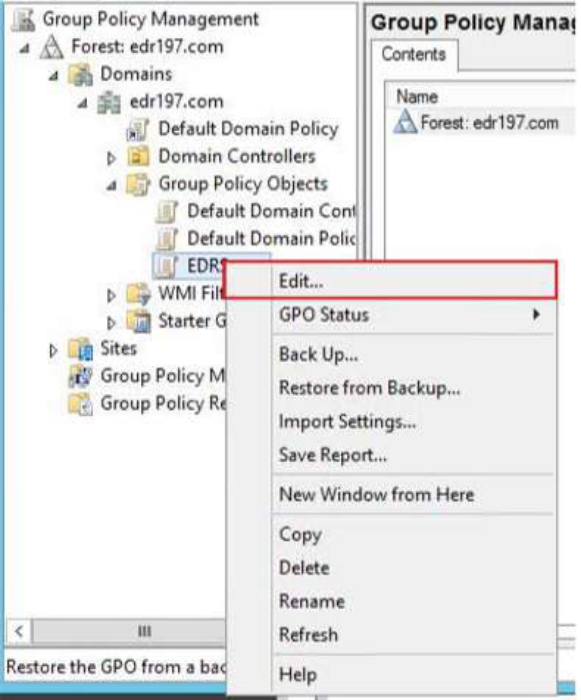
Right-click the newly created group policy object and select Edit .
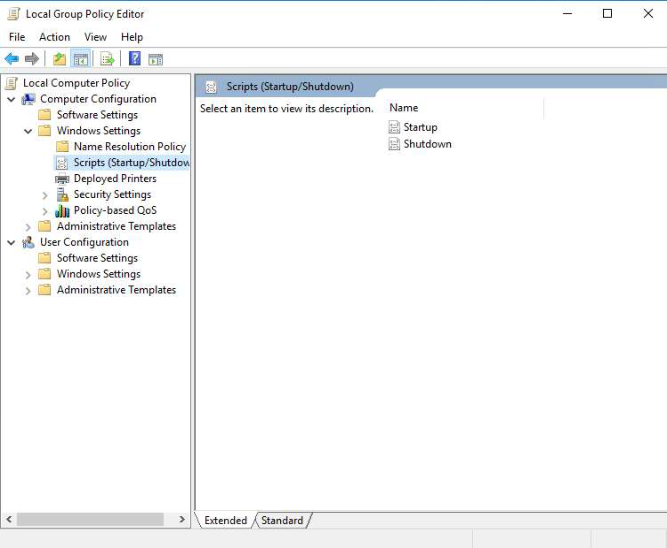
Go to Computer Configuration - Windows Settings - Scripts (Startup/Shutdown) and click Startup .
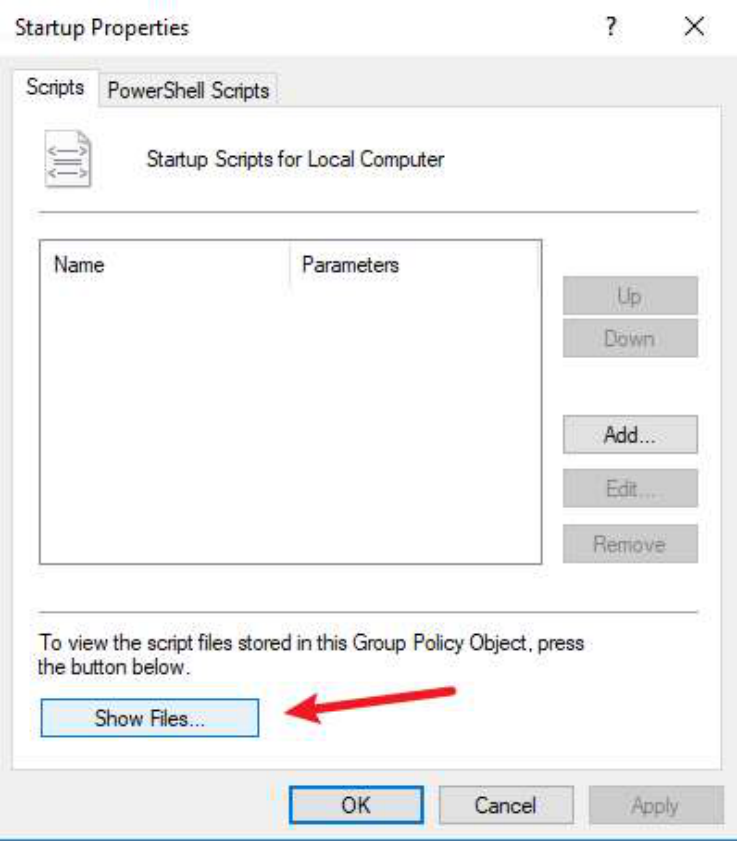
Click Show Files to open the startup script directory where the installer and the batch policy distribution script are to be placed, as shown in the following figure.
Place the installer and the batch policy distribution script in the startup script directory, as shown in the following figure.

Copy the path to the startup script directory from the address bar for later use in edr.bat modification.
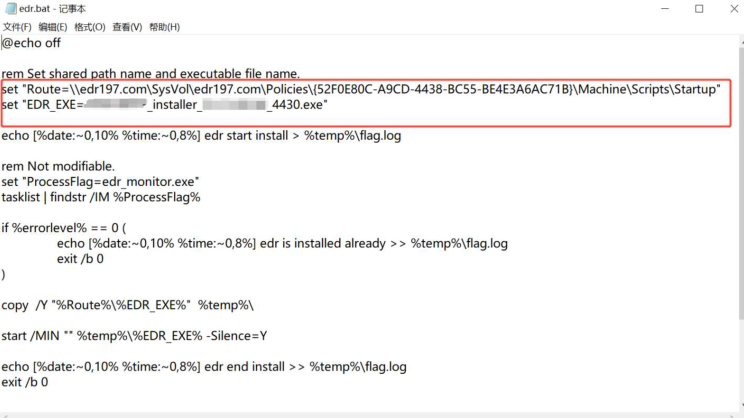
Open edr.bat with Notepad++ and make the following changes.
-
Change the values of the Route and EDREXE parameters.
-
Set Route to the startup script directory where the installer and the batch policy distribution script are stored.
-
Set EDR_EXE to the installer name.
-
Save the changes and close the script.
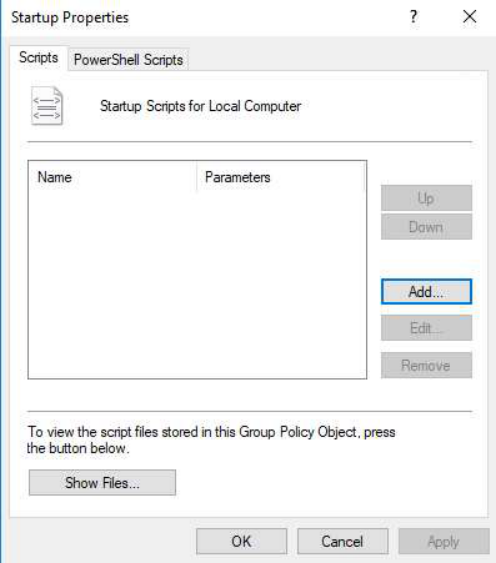
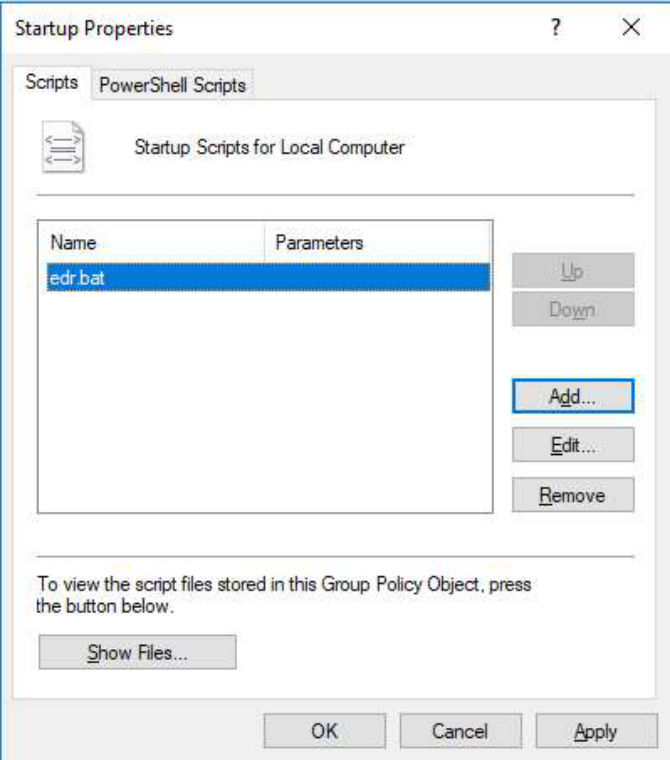
Click Add..., as shown in the following figure.
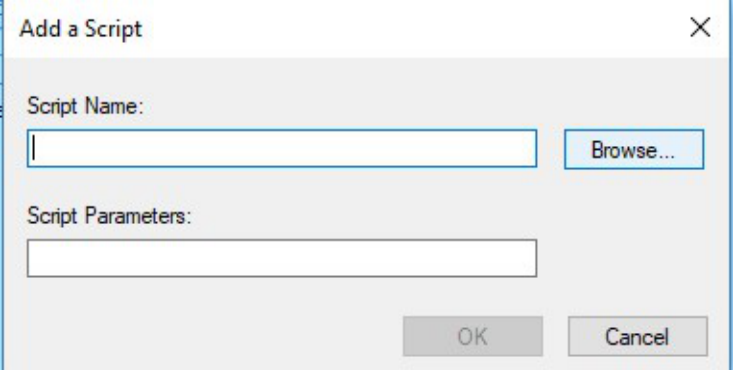
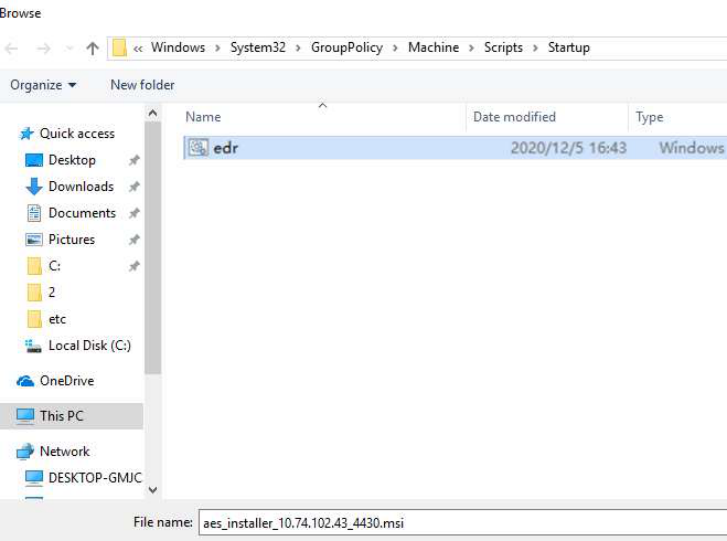
Click Browse... to select and add edr.bat.
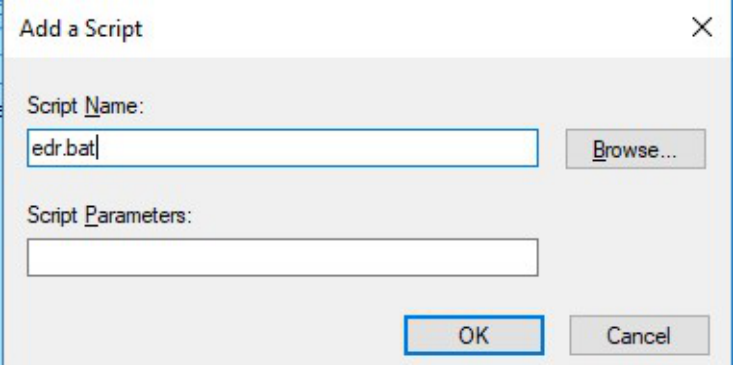
Click OK .
Link the group policy object:
Before applying the group policy to all computers in the domain, link the group policy object to a test organizational unit (OU) for a small-scale test.
Note:
The group policy takes effect only if there are computers in the OU. The group policy does
not take effect if there are only domain users because it is for Computer Configuration
rather than User Configuration .
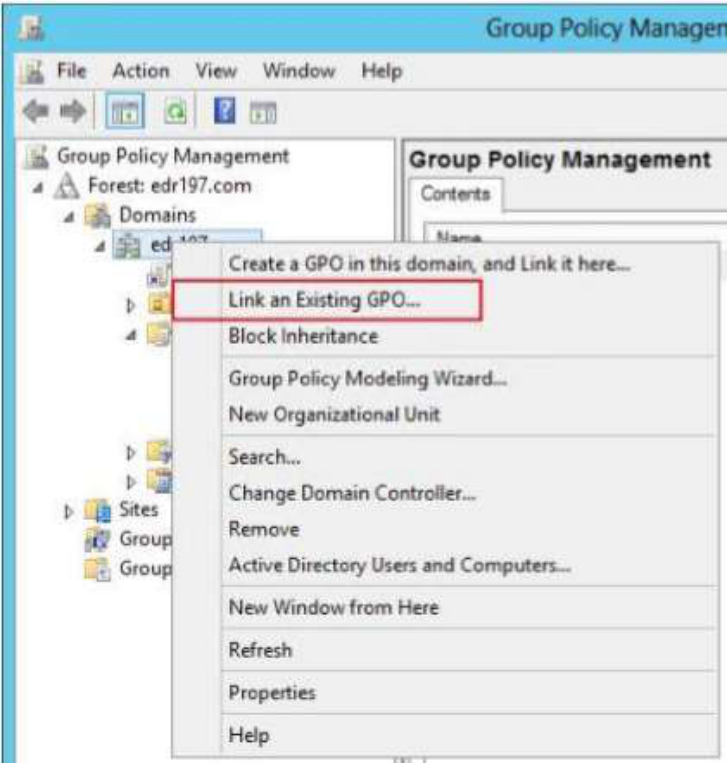
For example, you can link the group policy object to the test OU in the domain, as shown in the following figure.
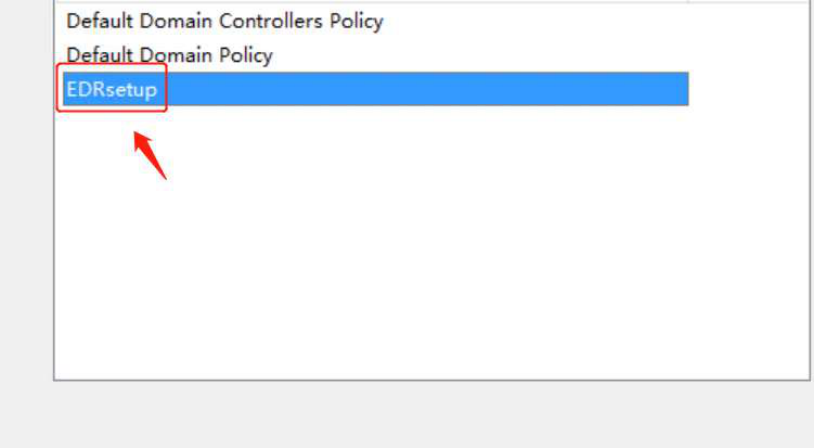
Select the newly created group policy object (such as EDRSetup), and click OK to complete the script-based deployment upon endpoint startup.
Verify the installation:
Restart the test endpoint to verify the installation of the NovaGuard agent. The NovaGuard agent is under installation if you find NovaGuard Antivirus Service in the endpoint Task Manager.
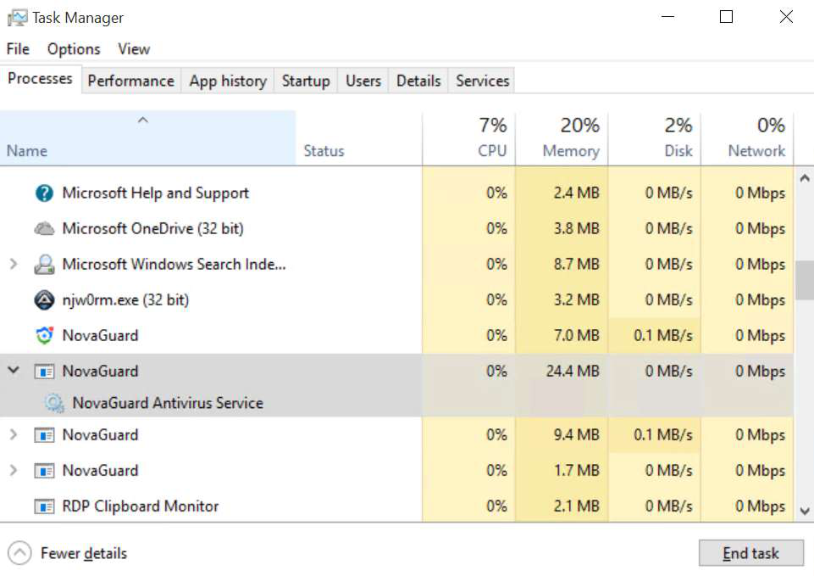
Wait for a few minutes for the installation to finish. Then, you can find the icon of the NovaGuard agent on the screen, as shown in the following figure.
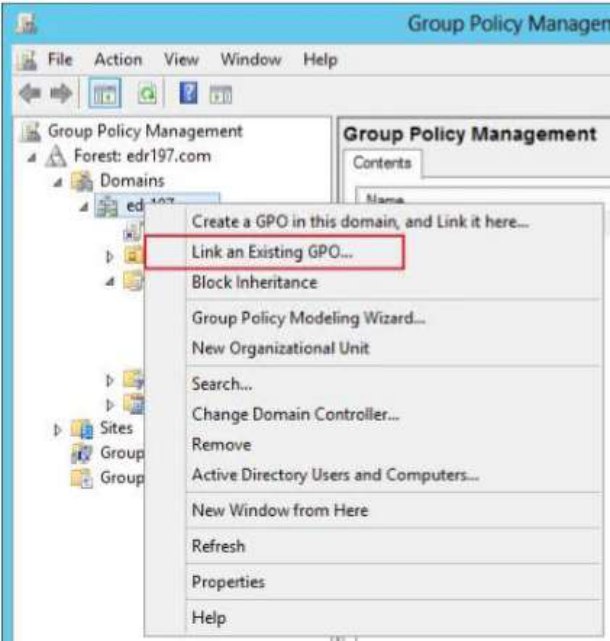
If computers in the test OU can successfully install the NovaGuard agent, link the group policy object to all computers in the domain. To do this, right-click the domain aES197.com and select Link an Existing GPO..., as shown in the
following figure.
Note:
- The group policy takes effect only if computers are in the linked OU. The group policy
does not take effect if there are only domain users because it is for Computer
Configuration rather than User Configuration . In this case, a computer automatically
obtains the NovaGuard agent installation group policy after it starts up and joins the
domain. For a group policy for User Configuration, a computer automatically obtains the
group policy for NovaGuard agent installation after logging in to the computer using a
domain user with the administrator role.
- During the installation of the NovaGuard agent, necessary components are downloaded
from the NovaGuard manager. To avoid excessive bandwidth usage due to bulk installation
and ensure stability, limit the number of endpoints per bulk on which the NovaGuard agent
is to be installed.
If the bandwidth is 100 Mbit/s (12.5 Mbit/s) and the maximum download bandwidth for each
endpoint is 2 Mbit/s, limit the number of endpoints per bulk to 5, with a reserved bandwidth
of 0.5 Mbit/s.
If the bandwidth is 1,000 Mbit/s (125 Mbit/s) and the maximum download bandwidth for
each endpoint is 2 Mbit/s, limit the number of endpoints per bulk to 60, with a reserved
bandwidth of 5 Mbit/s.
- A computer with the NovaGuard agent installed will not undergo another installation
when restarted.
