

4.4.1.1.1 Virus-Infected Files
Go to Defense > Malware Scan > Malware to find the details of detected security events, including malware, ransomware, cryptomining, backdoor programs, and worms, as shown in the following figure.
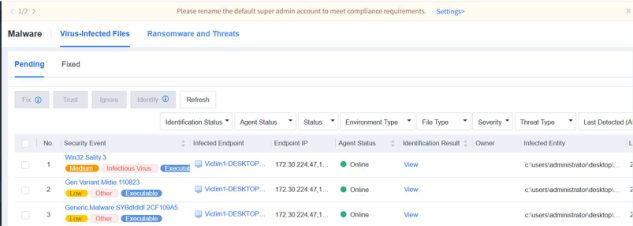
You can also filter security events by endpoint status, handling status, file type, severity, threat type, last detection time, and endpoint name/IP address/virus name/file path as an administrator. For example, to handle online security events only, filter events by selecting Online for Endpoint Status .
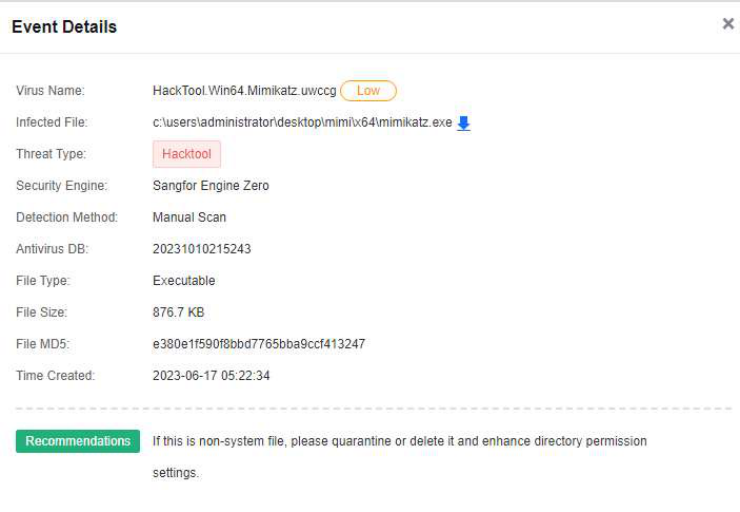
Click the name of a security event to check its details, as shown in the following figure.
Pending:
The Pending tab displays a list of pending security events. Under the Operation column, you can click Fix, Trust, or Ignore to handle the event. For example, for an infected file you want to quarantine, click Fix for the corresponding event, as shown in the following figure.
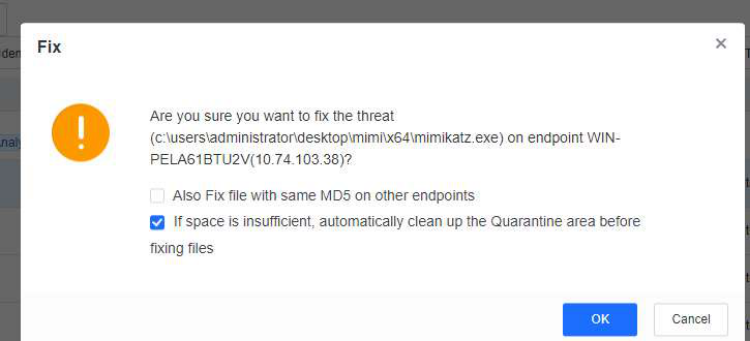
Select Also Fix file with same MD5 on other endpoints to fix the same infected file on other endpoints in bulk.
If you select the If space is insufficient, automatically clean up the Quarantine area before fixing files, the files in the Quarantine area will be automatically cleaned up if the number of files in the Quarantine area has reached the upper limit.
Note:
If the If space is insufficient, automatically clean up the Quarantine area before fixing files is selected, half of the files in the Quarantine area will be automatically cleaned up sequentially.
If you are unsure whether a file is malicious, click Identify or Analyze to submit the file to Neural-X Threat Intelligence for further analysis and identification.
The Neural-X service provides file identification capabilities backed by security experts, sandboxes, and engines, and analyzes files using a Cloud-Based Engine and the collected intelligence. It provides more accurate identification results and a closed-loop approach to event handling.
When the NovaGuard manager is connected to the Internet, any detected infected files are automatically identified by Neural-X, which will then provide relevant results. In cases where files cannot be automatically identified, you can manually submit them to Neural-X for identification.
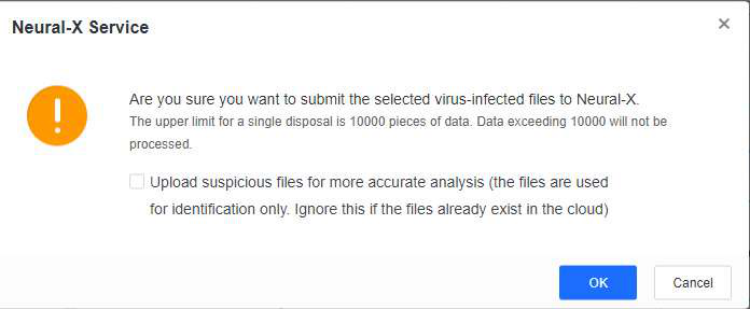
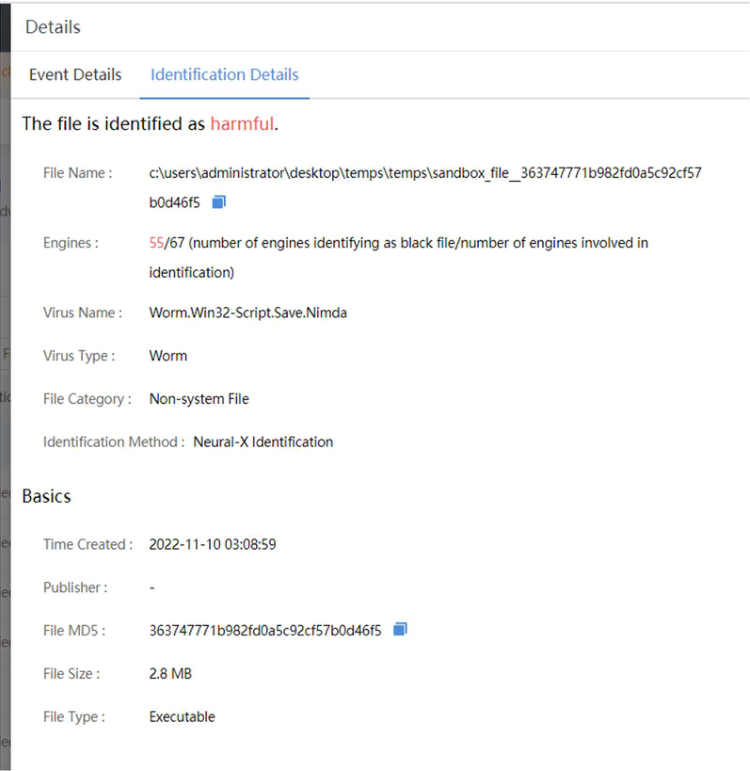
After identification is complete, click View to review the identification details.
Fixed:
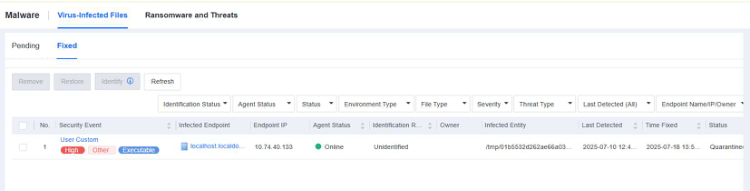
The Fixed tab displays all infected files that have been quarantined. You can Remove, Restore, or Ignore the files, as shown below.
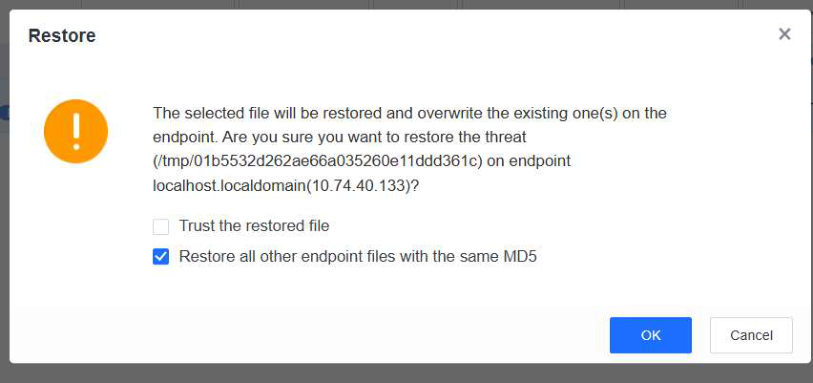
Select infected files and click Remove to delete quarantined files in bulk, or click Restore to restore quarantined files in bulk, as shown in the following figure.
You can fix up to 10,000 infected files at a time. To fix all infected files at a time, check the box in the upper left corner of the list, click Select all on all pages, and then click Fix, as shown in the following figure.
