
4.4.1.2 Tasks
Go to Defense - Malware Scan - Tasks, move the pointer over the Quick Scan button, and select Quick Scan or Full Scan, as shown below.
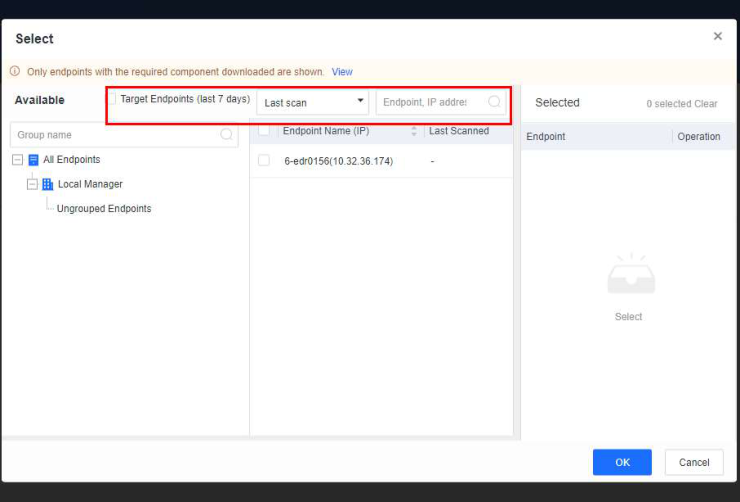
Endpoints: You can view the target endpoints of the last seven days, view endpoints that have not been scanned in the last seven days, 30 days, or 90 days, view the last scanned time of an endpoint, and search for specific endpoints by name or IP address as an administrator.
CPU Usage: Includes three modes: High CPU, Adaptive, and Low CPU, each with the following distinct characteristics:
-
High CPU: Consumes the most CPU resources (<50% when CPU usage restriction is enabled).
-
Adaptive: Dynamically adjusts CPU resources based on the CPU usage. It optimizes the scan speed by leveraging ample CPU resources when the CPU usage is low and minimizing resource consumption when the CPU usage is high, thus ensuring smooth service operations.
-
Low CPU: Consumes no more than 10% of CPU resources (<5% when CPU usage restriction is enabled).
Note:
The adaptive mode applies to Windows endpoints only, while an adaptive scanning mode is designed for Linux endpoints, with a limitation of 30% on CPU usage during virus scans.
In-depth Analysis: Once in-depth analysis for infectious viruses is enabled, the scan will take 5% longer. It is advised to enable it only when infectious viruses are on the endpoints. This is only applicable to Windows endpoints.
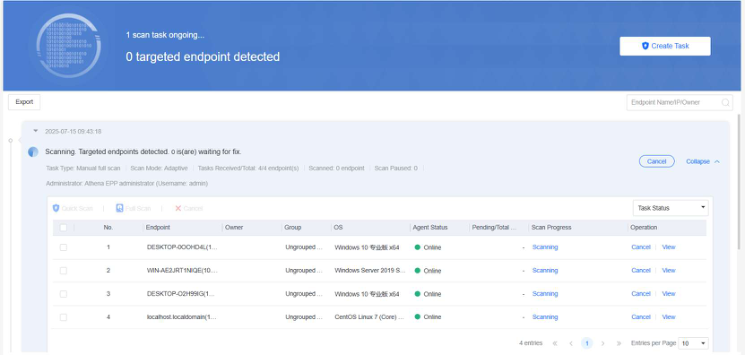
Select endpoints and issue virus scan tasks. Then, check the task status of the endpoints, as shown in the following figure.
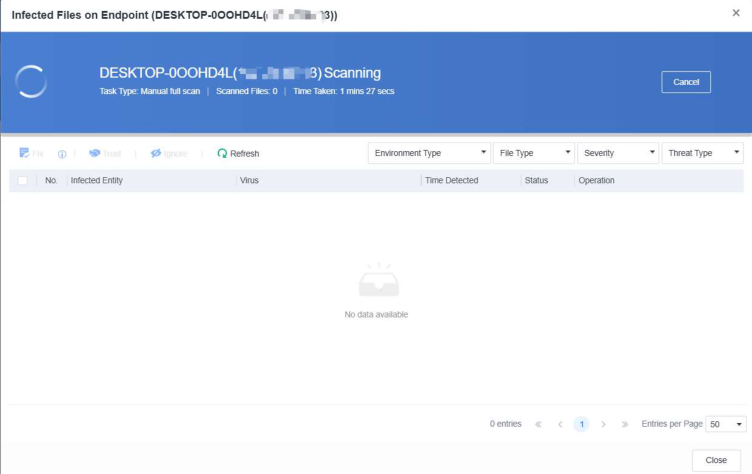
Click View on the right of a specific endpoint and view its scan progress, as shown in the following figure.
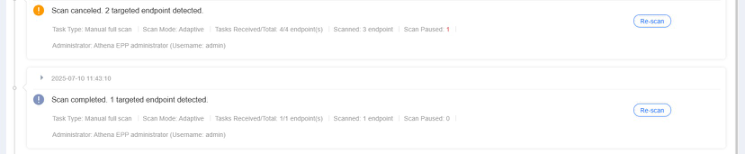
After the scan is complete, review the scan results, which include details such as the task type, CPU usage, number of tasks received by endpoints, scanned endpoints, paused endpoints, endpoint names and IP addresses, groups, operating systems, endpoint status, pending/total viruses, and scan progress, as shown in the following figure.
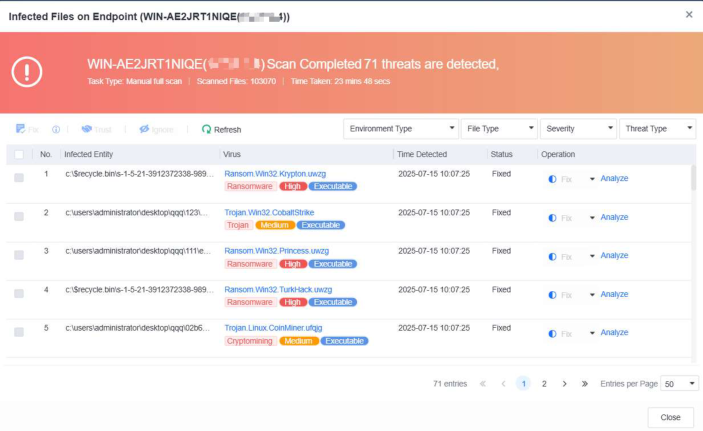
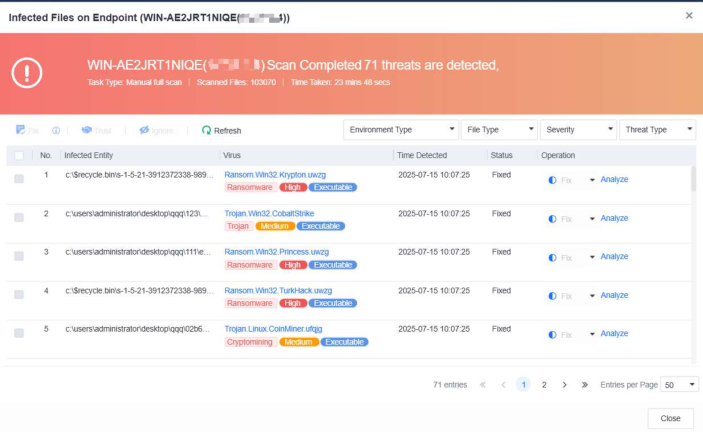
Handle the detected infected files by either fixing or trusting them. If the infected files seem suspicious, click Analyze to access Neural-X Threat Intelligence for analysis. Then, fix the files based on the analysis result, as shown in the following figure.
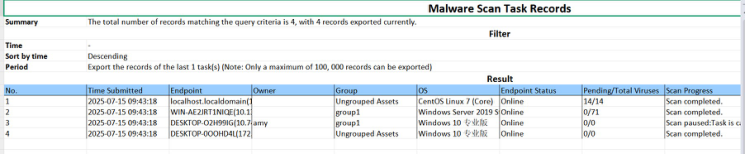
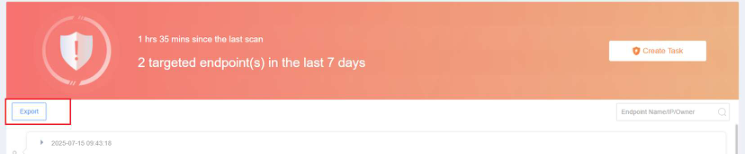
Click Export to export the virus scan results within a selected period.
The virus scan results are exported as an Excel file, as shown in the following figure.