
4.5.1.5 Manage Endpoints
On the Endpoint Groups page, you can view endpoint information, move endpoints to other groups, manage remote endpoints, enable remote support, send messages, and export endpoints.
View endpoint information:
On the Endpoint Groups page, you can view the basic information of all endpoints, as shown in the following figure.
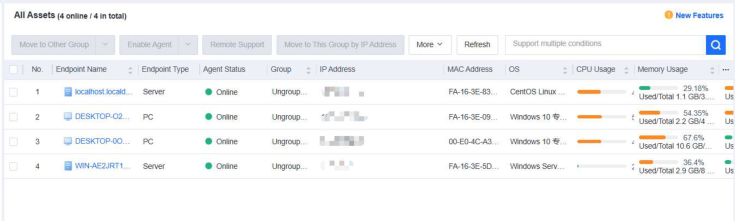
The page includes columns such as Endpoint, Asset Status, Group, IP Address, MAC Address, OS, Realtime Protection Status, CPU Usage, Memory Usage, Asset User, Asset Number, and Location . Administrators can determine whether to display a column by clicking ... on the right.
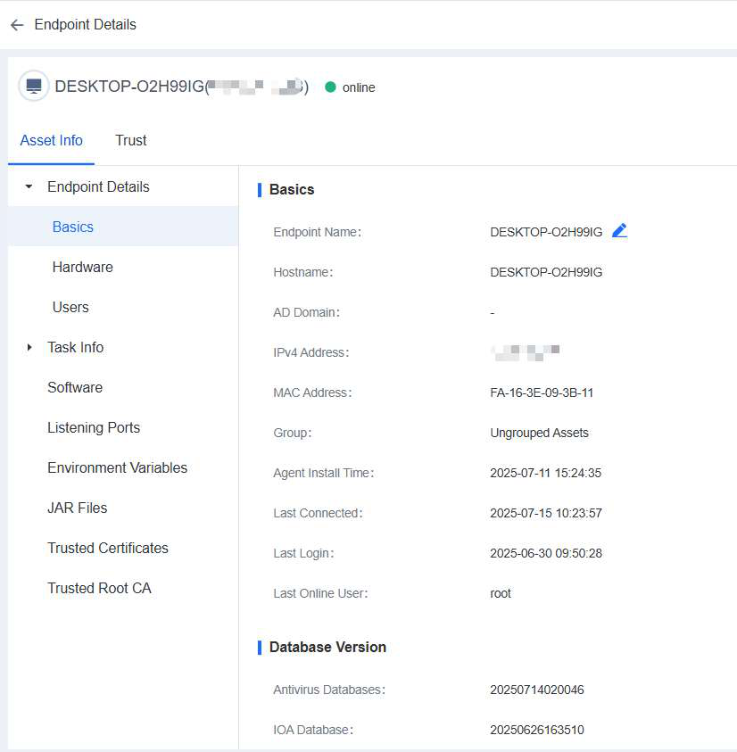
You can click the name of an endpoint to go to its details page, as shown in the following figure.
On the Endpoint Details page, you can run Vulnerability Scan, Quick Scan, and Full scan . You can also Enable, Disable, or Uninstall NovaGuard agent on the same page.
1. Basics
Basics : Includes information such as Endpoint (editable), Hostname, IPv4 Address, MAC Address, Group, Agent Installation Time, Last Connected, Last Login, and Last Online User .
System Information : Includes information such as OS, Version, OS Status, and Time Installed .
Other (editable): Includes information such as Asset User, Node, Asset Number, Location, Staff No., Phone Number, and Email Address .
2. Hardware
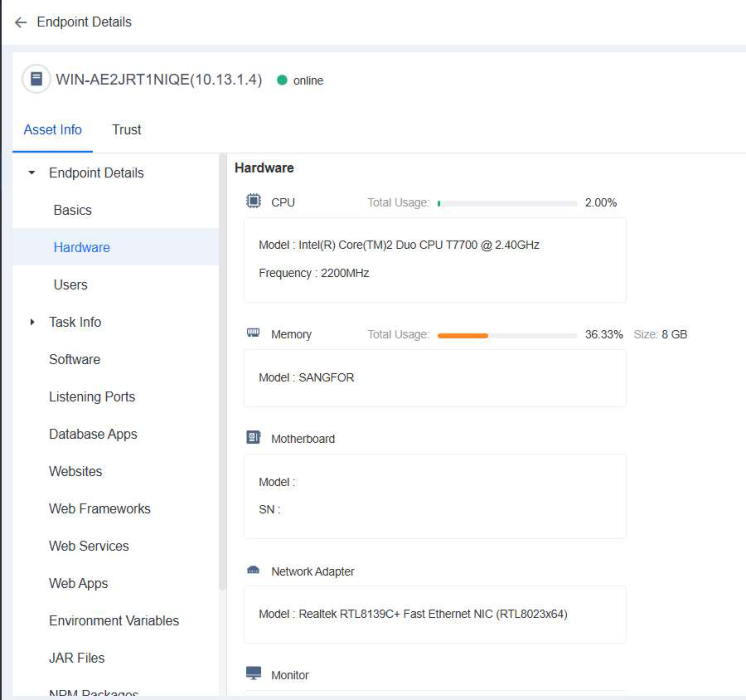
Hardware : Includes the models and usage of the CPU, Memory, Hard Disk, Motherboard, Network adapter, Graphics card, Sound card, and Monitor .
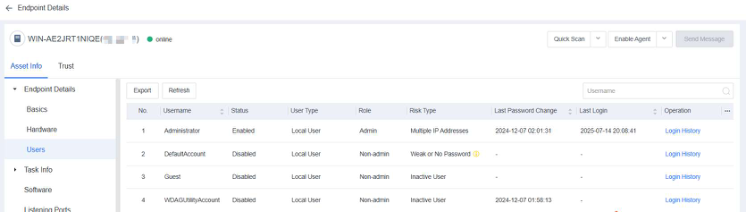
3. Users
Users: Includes the endpoint's account information such as Account, Status, Account Type, Role, Risk Type (you can move the pointer over the exclamation icon to view the risk details), Password Change, Last Login, Password Status, and Login History .
Note:
Click … on the right to determine whether to display a hidden column.
4. Task Info
Task Info includes information such as Processes, Services, Connections, Startup Items, Scheduled Tasks, Sharing, and Registry .
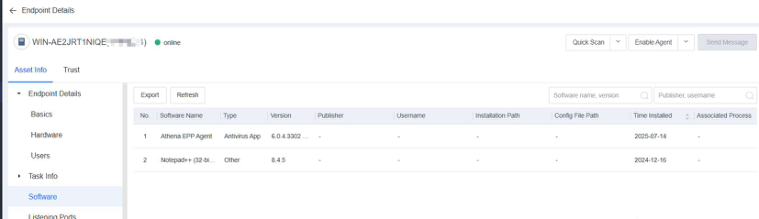
5. Software
Software includes information such as Name, Type, Version, Publisher, Installation Path, and Time Installed . You can filter software by software name, version, or publisher and export software information.
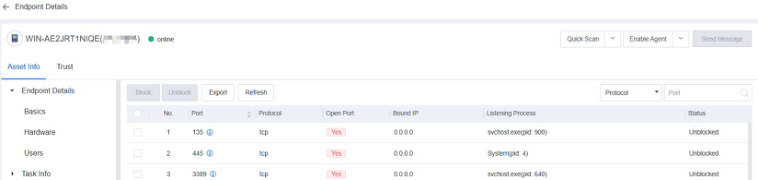
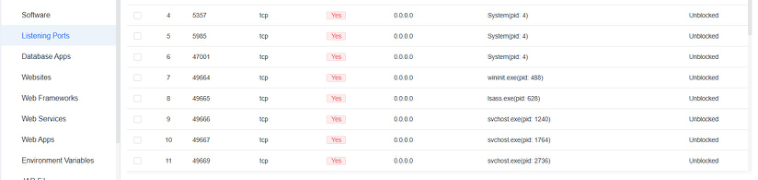
6. Listening Ports
Listening Ports includes information such as Port, Protocol, IP Address, Listening Process, Open Port, and Status . You can block or unblock ports, import port information, and search for ports by protocol or port number.
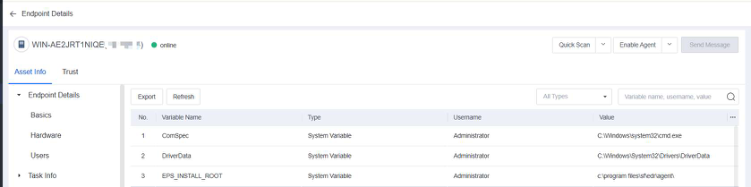
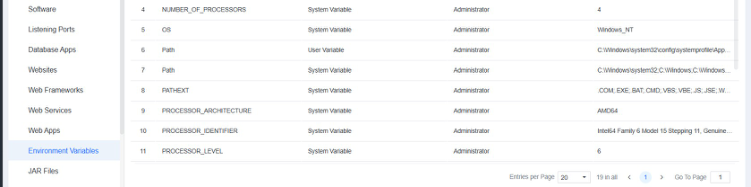
7. Environment Variables
Environment Variables include the environment information of the system and the currently logged-in user. Some programs use such information to determine where files (such as temporary files) are to be placed.
8. JAR Files
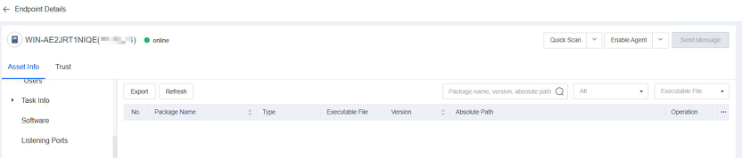
Java Archive (JAR) is a platform-independent file format that allows you to compress multiple files into one. JAR Files shows the JAR files of the endpoint on the NovaGuard manager.
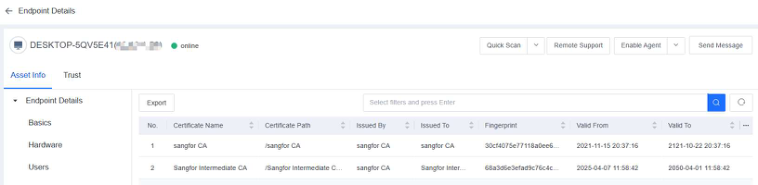
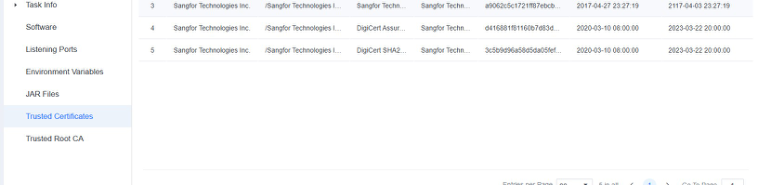
9. Trusted Certificates
Trusted Certificates displays all trusted files, paths, and processes added by the endpoint. Administrators can check such information to avoid viruses caused by improper addition, as shown in the following figure.
10. Trusted Root CA
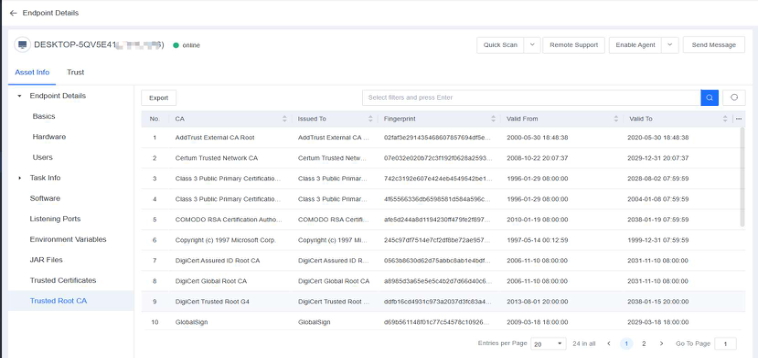
The Trusted Root CA page allows you to view information such as the issuing authority, Issued To, Fingerprint, and time of Trusted Certificates.
11. Trust
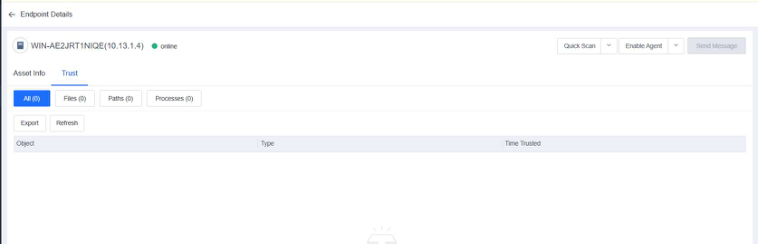
Support viewing Trust policies have been added to the terminal.
12. Move endpoints to other groups:
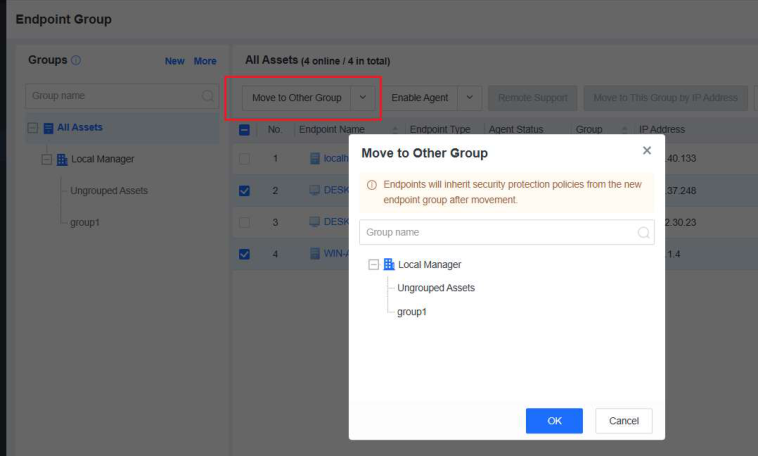
You can click Move To Other Group to move online endpoints to other groups, as shown in the following figure.
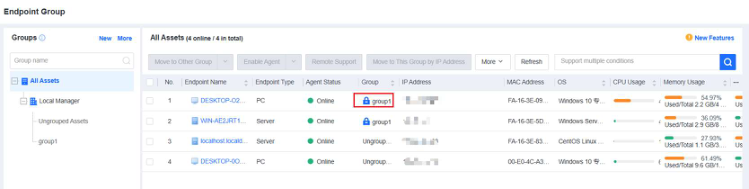
When Endpoint IP Range is selected as the auto grouping rule, the system

automatically adds a 🔒 tag to manually move endpoints to be locked into the current group and not automatically grouped based on their IP addresses, as shown in the following figure.
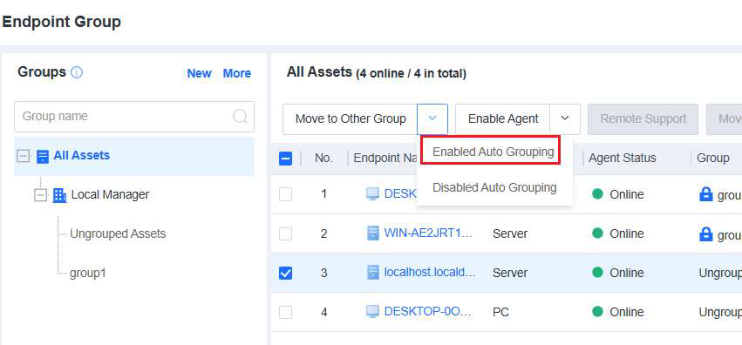
To recover auto grouping for an endpoint with a fixed group, select the endpoint and click Enable Auto Grouping, as shown in the following figure.
Note:
When the agent goes online, it will trigger the auto grouping policy if the following two
prerequisites are met:
-
The auto grouping policy has been configured.
-
The group to which the endpoint belongs is not in a locked status.
Actions such as restarting the endpoint or agent will make the agent go online. Therefore, if
you do not want a specific endpoint to be moved to a different group due to the automatic
grouping policy, please manually move the endpoint to a specific group as described above.
Manage remote endpoints:
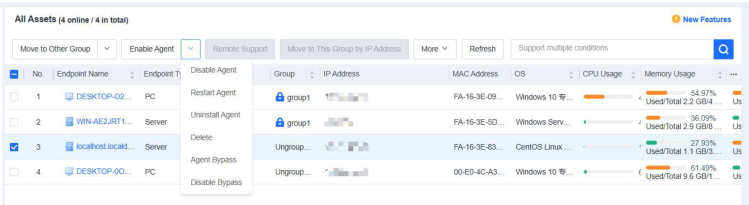
You can enable, disable, restart, or uninstall the NovaGuard agent for selected endpoints, delete endpoints, and send messages to endpoints. You can also enable or disable Agent Bypass for Windows Server or Linux endpoints, as shown in the following figure.
- Restart endpoints
You can restart one or more endpoints on the All Endpoints page, as shown in the following figure.
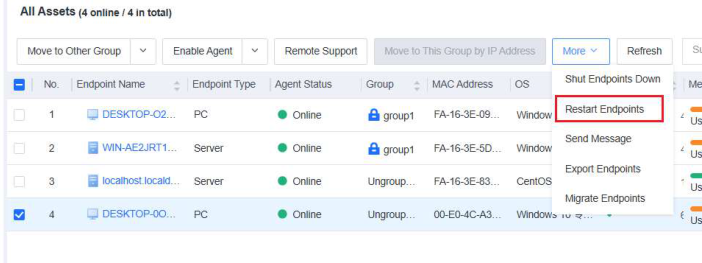
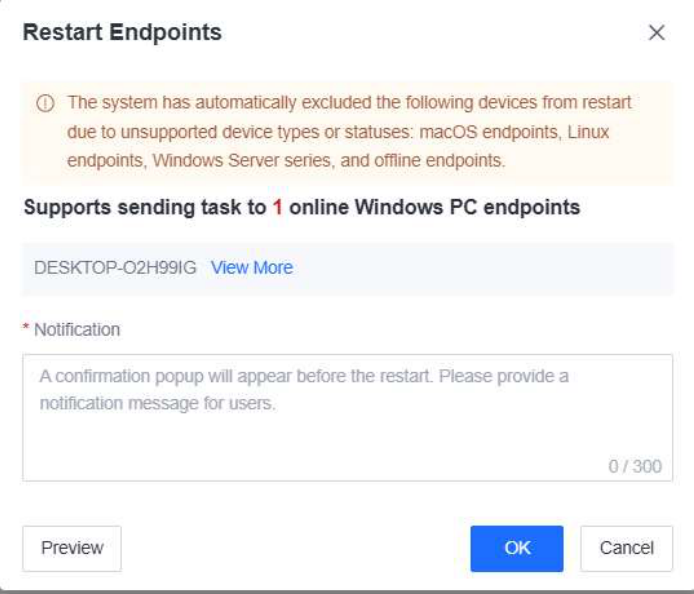
Click Restart Endpoints to configure a restart policy.
Note:
This applies to Windows endpoints only.
- Shut down endpoints:
You can shut down one or more endpoints on the All Endpoints page, as shown in the following figure.
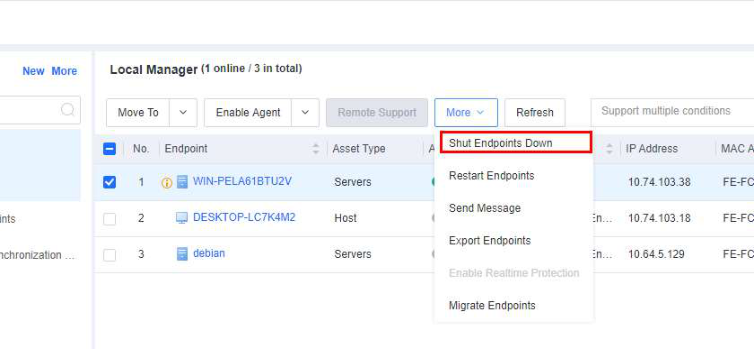
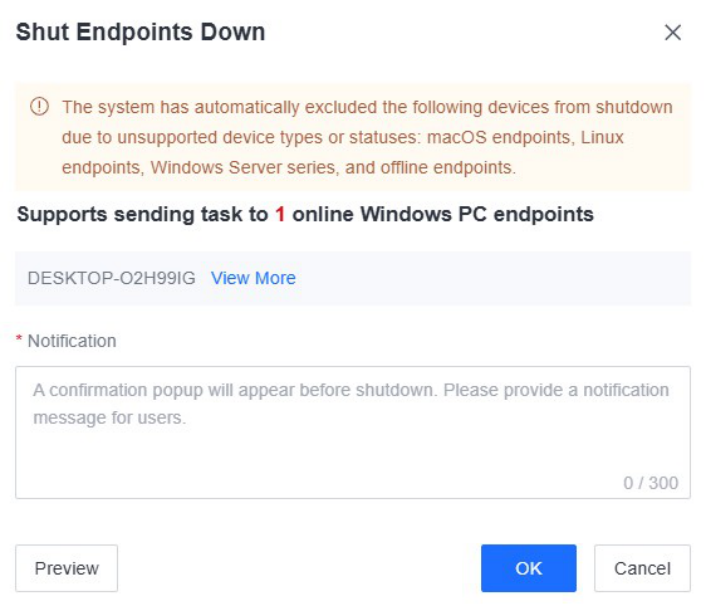
Click Shut Endpoints Down to set a shutdown policy.
Note:
This applies to Windows endpoints only.
- Send messages
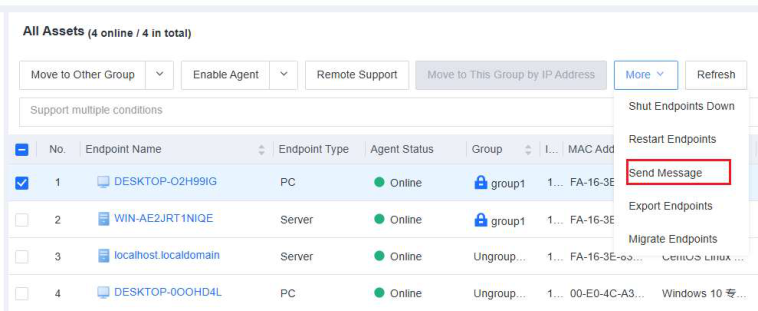
You can send messages to one or more endpoints on the All Endpoints page. The procedure is as follows:
Step 1. On the Endpoint - Endpoint Groups - All Endpoints page, select one or more endpoints, and then select Send Message to go to the Send Message page, as shown in the following figure.
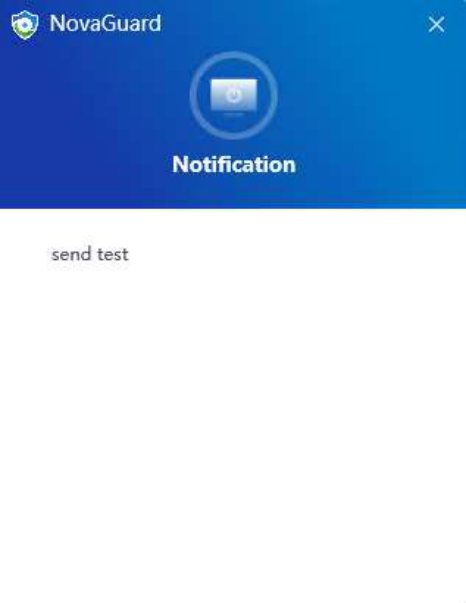
Step 2. Enter the message content. Then, users of the selected endpoints will receive the message, as shown in the following figure.
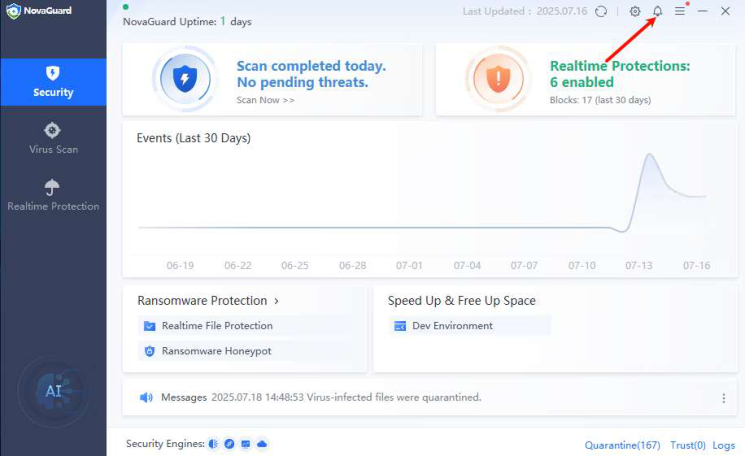
Step 3. Users can click the close ( X ) icon in the upper right corner to close the message and click the notification icon shown in the following figure to view
historical messages.
- Export endpoints
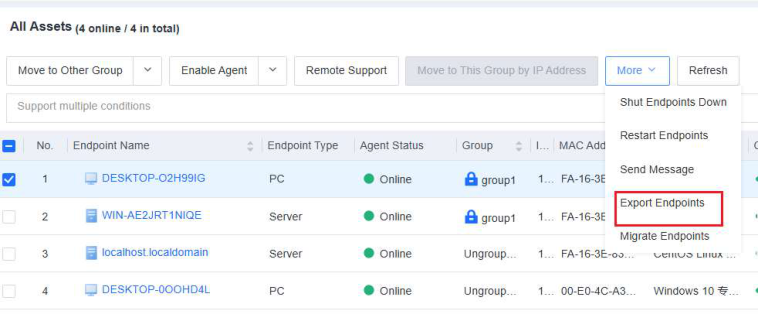
To export an Excel file containing endpoint details, go to Endpoint - Endpoint Groups, select the endpoints to be exported, and click More - Export Endpoints, as shown in the following figure.