

Install ForeNova MDR components
NovaMDR Component Setup
Deploying the NovaSensor
Please take care of the following:
-
NovaSensor is only supported on VMWare ESXi hypervisor (version 5.x/6.x or 7.x)
-
We support a NS-200 sensor with a maximum of two SPAN ports.
-
Please be aware of the specifications:
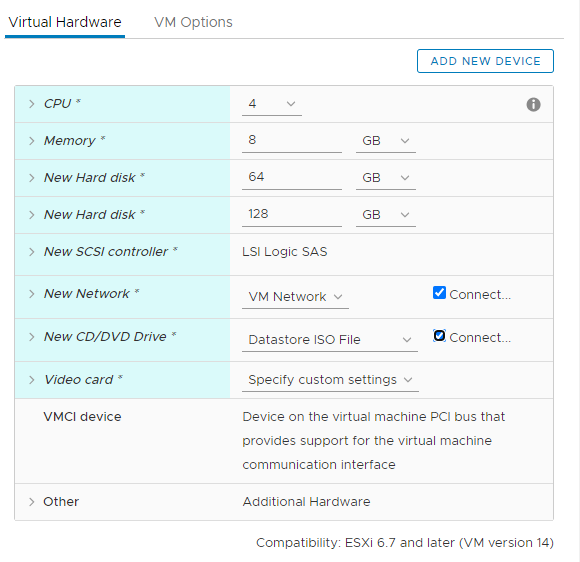
4 vCPU, 8GB RAM, Disk1 64GB, Disk2 128GB
The NovaSensor can be setup with the installation of the delivered software by ForeNova. The default installation will be done with an ISO image which can be downloaded at the ForeNova download site. In this installation manual we show you the installation steps on a vSphere environment.
Please make sure you are aware of the specifications, if the specifications are not met, the installation might fail. Specifications of the NovaSensor of your choice can be found on top of this document.
Creating the VM
First we need to create a new virtual machine with the provided specifications. For a NS-200 we need specs as shown as the following image. Please adjust the specifications to your need, add disks and network cards as needed for your situation.
Please start the installation with 1 network adapter and add the rest of the adapters as needed after the installation is done. This makes sure the 1st adapter is also eth0 in the system.
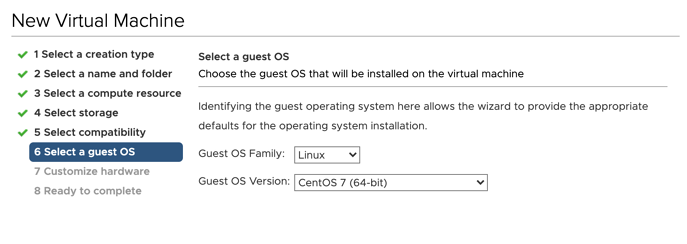
Select to install the VM as CentOS version 7 (64-bit)
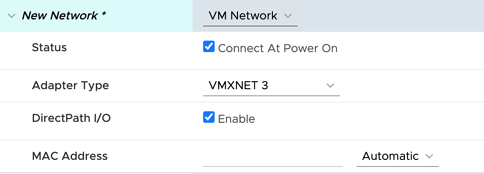
Select the network adapters to use VMXNET 3. This is very important, the NovaSensor will fail to work with E1000 adapter types.
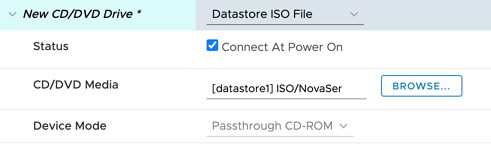
Attach the NovaSensor ISO file to the VM. You need to upload the ISO to one of the available data stores first to make it accessible to the VM.
As everything is in place, review your settings and power on the VM. The VM will boot automatically into the ISO, as no operating system is on the disk yet.
Starting the installation
When the VM is booted into the ISO installation you will see a menu that gives you a few options. Please choose the option Install NovaSensor 3.0.x Automatic or wait for the timer to end.
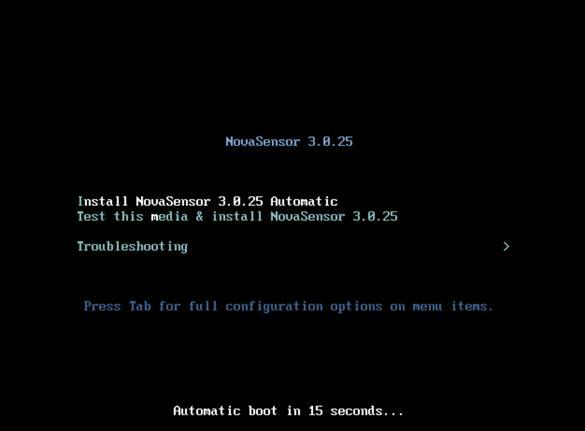
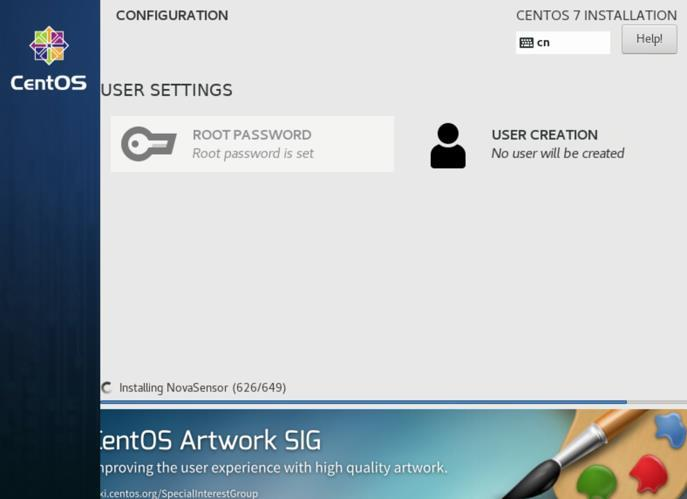
After the start of the installation the whole process will be automated by a script. There is no need for input on your side, it is a fully automated installation. As you will see on the screen a full installation of CentOS will be done including the NovaSensor software.
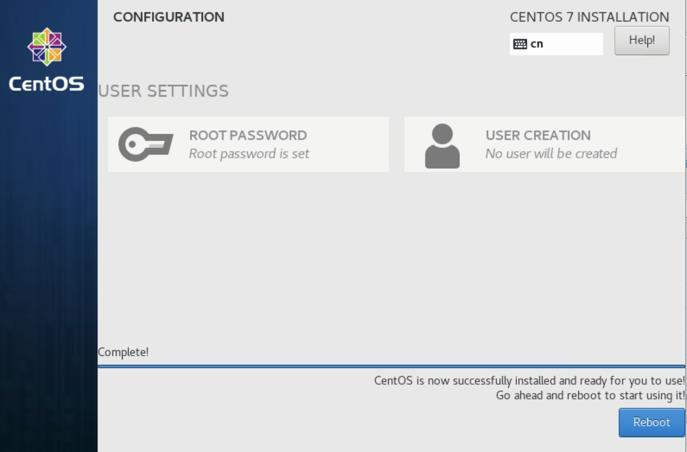
When the installation is done it will ask you to reboot the VM so it will boot up into the installed NovaSensor software. (CentOS) Please click on Reboot and the VM will restart. (please make sure the ISO is disconnected)
When the VM is rebooted you will see a login prompt on the NovaSensor. There is no need to login, you can access the NovaSensor via the build in web interface.
Please make sure the ISO image is not mounted anymore to the VM. In some cases it might restart the installation if the ISO is still attached.
Connecting to the Web Interface
All the options and settings of the NovaSensor can be configured via the web interface.
By default the NovaCommand machine will have the IP address: 10.251.251.251 Please make sure you have a machine available in the same network range as the NovaSensor. You could give a machine an IP address in the same range (for example 10.251.251.10) and connect with that machine to the web interface of the NovaSensor.
Check if you can reach the web interface at https://10.251.251.251
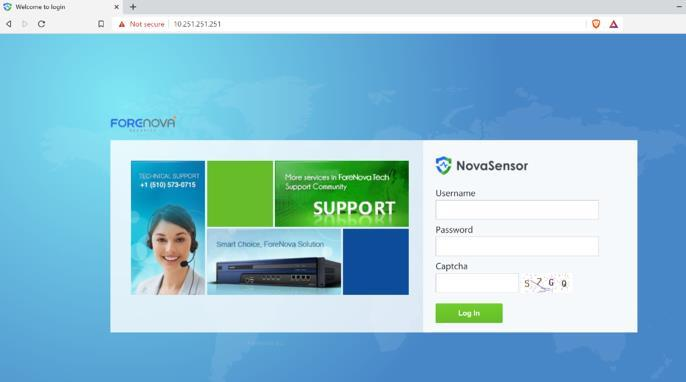
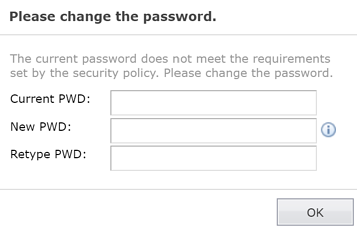
If you see the web interface, please login with the following credentials: user = admin password = admin After you login with this credentials, you will have to change them to something that suits your needs. Please make sure you meet the minimum requirements. After setting your new password you will have to login again.
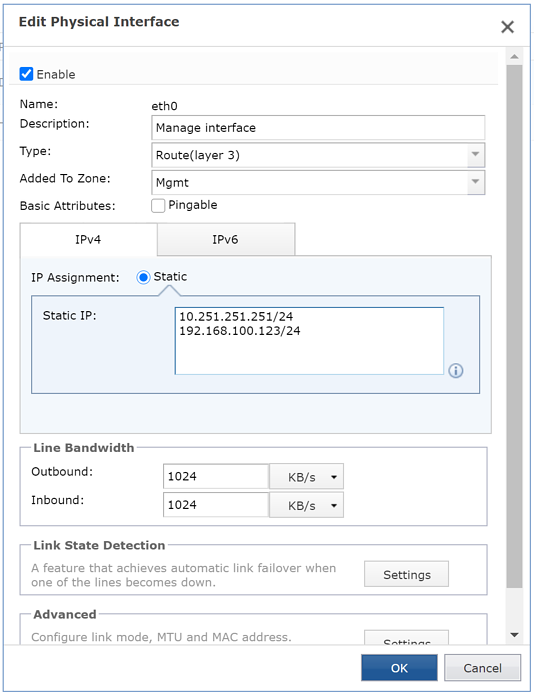
To make your NovaSensor available on the network of your choice, you can add an IP address to the NovaSensor. Please go to Network - Interfaces in the menu and click on eth0. This is the management interface. Here you can add the IP the is suitable for your situation. Notation is ip/mask. In this example we add the address 192.168.100.123 with a /24 subnet (255.255.255.0) Please be aware that you cannot delete the default IP address.
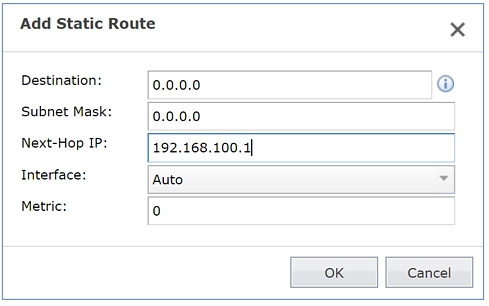
Please set a new (default) route as well. In this example we add a default route to all networks to 192.168.100.1
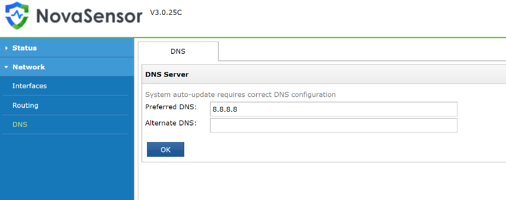
And last, but not least, please set a proper DNS server. This can be an internal or external DNS server depending on your needs. Of course, you can add multiple DNS servers as well. In this example we use Google DNS to provide us with name resolution on the NovaSensor.
Now that your new IP details are set, you should be able to access the NovaSensor on the new IP address. If this fails, please re-check your IP settings. Also check on what network the virtual adapter is attached.
Adding extra network adapters and Mirror data
Do not forget to add the extra network adapters for receiving the network data from your infrastructure. This are the so called ‘SPAN Interfaces’ or ‘Mirror Interfaces’
Shut down the VM and add 1 or two additional network cards to the VM.
After starting the VM, the adapters will be recognized and set as SPAN adapters in the NovaSensor.
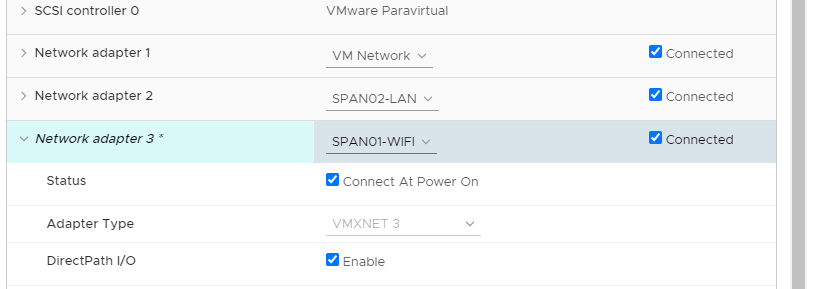
Please make sure the adapters are of the type ‘VMXNET 3’
These adapters should receive the mirror traffic from your environment that you would like to test with.
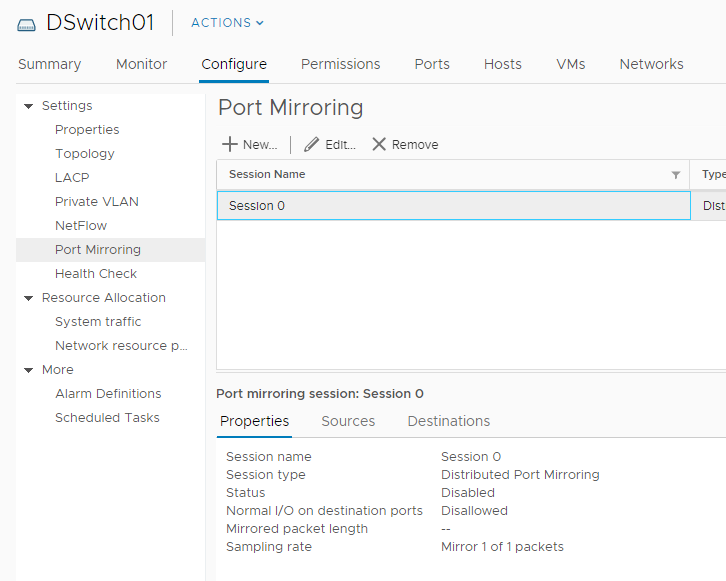
If you are using vDS (virtual Distributed Switches) in VMWare you can SPAN data directly from the vDS to the NovaSensor ports.
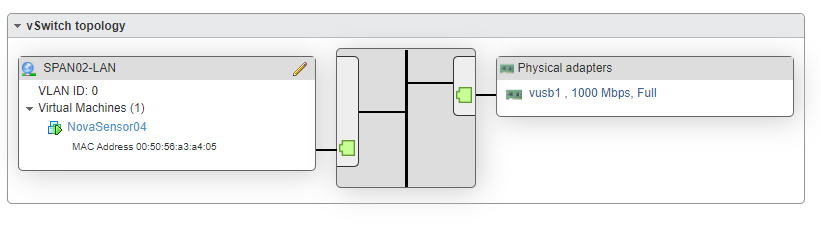
If your SPAN data comes from outside of your virtual environment (directly from your core-switch for example) then make sure you have a free (physical) network adapter available in your ESXi server.
Create a new virtual switch, attach the physical adapter to the switch, as well as the virtual ‘mirror’ port of the NovaSensor
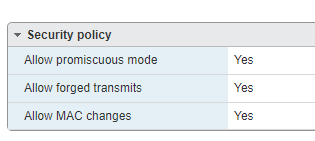
Do not forget to put your newly created switch into promiscuous mode. These settings are needed to receive traffic that is not meant for this adapter / switch.
Configure Hyper-V NIC in Promiscuous Mode
Hyper-V NIC configured in promiscuous mode allows you to monitor external traffic.
- Open PowerShell on your Hyper-V host as an Administrator.
- Add Port Monitor Mode Feature to the vSwitch your NNM VM is connected to. You need to replace
<vSwitchName>with name/ID of actual vSwitch.
$A = Get-VMSystemSwitchExtensionPortFeature -FeatureName "Ethernet Switch Port Security Settings"
$A.SettingData.MonitorMode = 2
Add-VMSwitchExtensionPortFeature -ExternalPort -SwitchName <vSwitchName> -VMSwitchExtensionFeature $A
Add-VMSwitchExtensionPortFeature -ExternalPort -SwitchName <vSwitchName> -VMSwitchExtensionFeature $A
- Verify that feature is added:
VMSwitchExtensionPortFeature -ExternalPort -SwitchName <vSwitchName> –FeatureName "Ethernet Switch Port Security Settings"
- Change the PortMirroring attribute of the VM Networkdevice. This can also be done using the GUI. Replace
<VMNAME>with the name of the NNM virtual machine and<MACAddr>of the NNM VM.
Get-VMNetworkAdapter -VMName <VMName> | ? MacAddress -eq '<MACAddr>' | Set-VMNetworkAdapter -PortMirroring Destination
Deploying the Agent
To install the agent please make sure you download the correct version of the software.
The link should be provided by ForeNova.
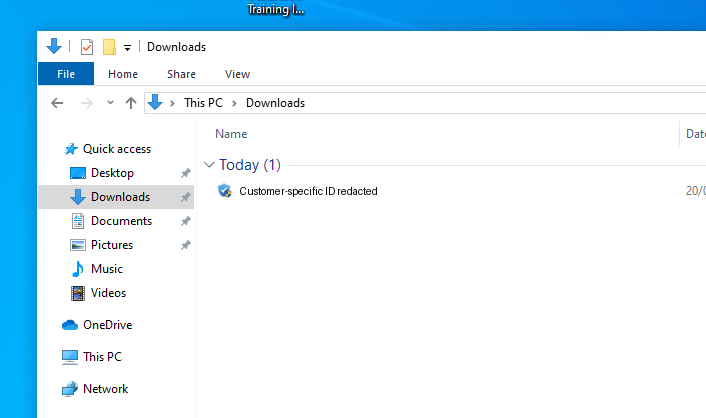
Customer-specific ID redacted.
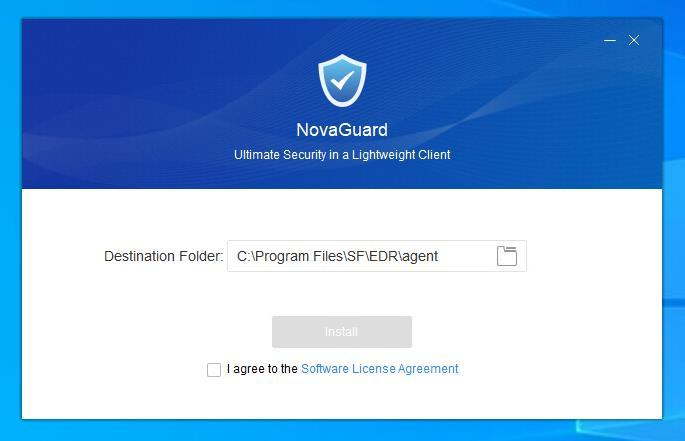
Agree and click on install, If you want edit the path for installation.
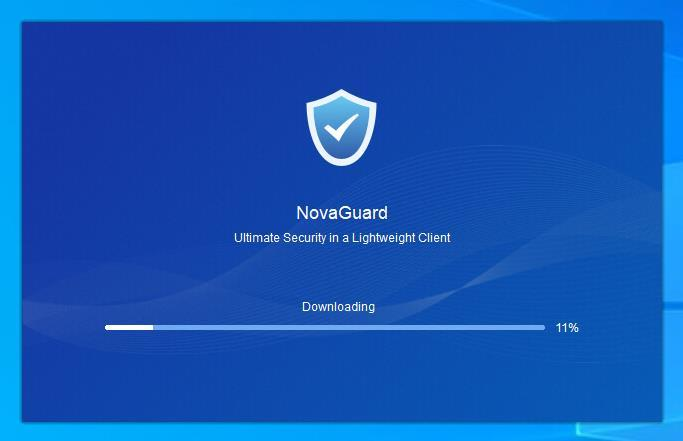
Agent is downloading the components needed for installation.
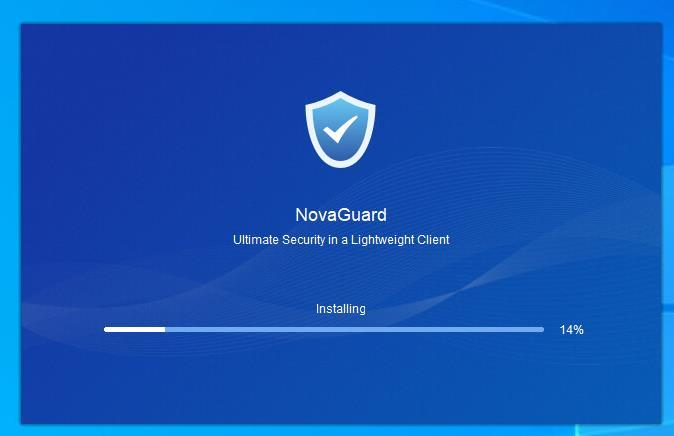
The agent is installing
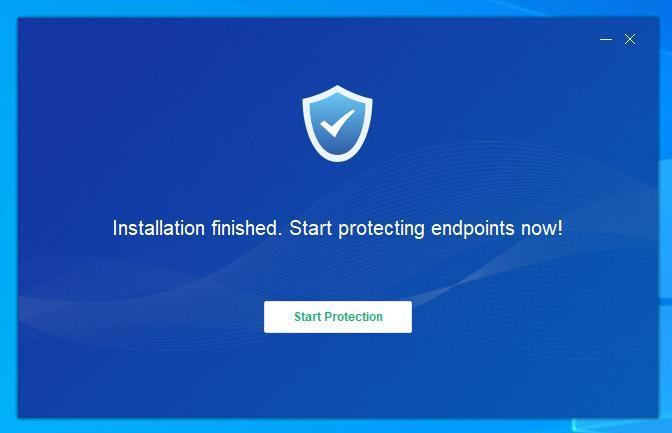
Finished installing, the agent is running and will start collecting information to send to the ForeNova MDR solution.
ForeNova Technologies B.V.
Kingsfordweg 151, 1043 GR Amsterdam, Netherlands
www.forenova.com | sales@forenova.com
