
2.1.1.4 Script-Based Deployment
Note:
Prioritize OVA and ISO images for the NovaGuard manager deployment and use script based deployment only in environments that do not support OVA/ISO image-based
deployment.
Before script-based deployment, prepare a server, install a compatible operating system on the server, configure network settings (including the server IP address, routing information, gateway, and DNS servers) for the server, and test the network connectivity of the server.
Step 1. Upload the installation package.
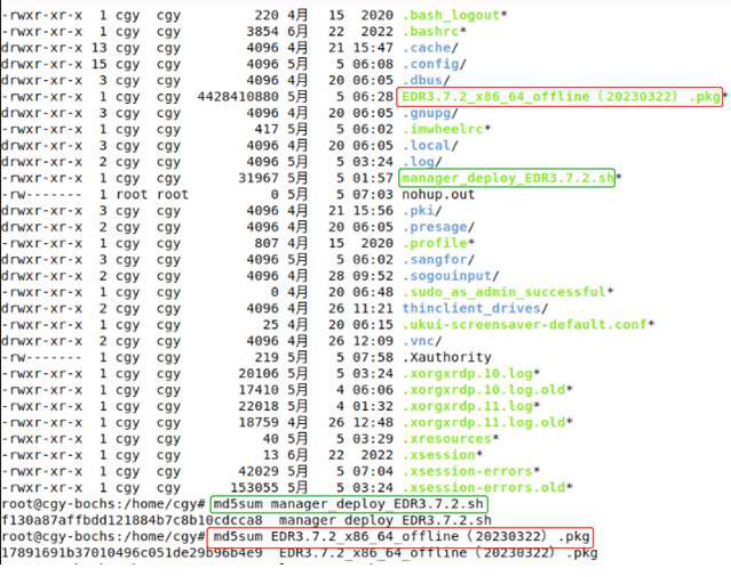
Upload the installation package (with the extension .pkg ) and the installation script (with the extension .sh ) to the same directory on the server, verify the MD5 checksum after the upload is complete to ensure package integrity and run the chmod u+x manager_deploy.sh command to make the installation script executable.
Note:
Packages whose name includes " offline " indicate offline installation packages. Select an offline NovaGuard installation package based on your operating system and architecture.
Step 2. Run the installation script.
Run the installation script by using the following command. Replace the package name and keep 127.0.0.2 unchanged:
./manager_deploy.sh package_name.pkg 127.0.0.2

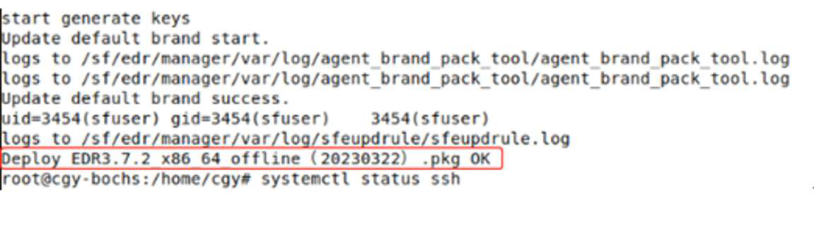
The installation is complete once the prompt " Deploy XXX.pkg OK " appears.
Step 3. Configure network settings.
Network settings vary with the underlying operating systems and system versions. The following examples demonstrate how to configure interfaces and restart services on common operating systems.
Linux: vi /etc/sysconfig/network-scripts/ifcfg-XXX , systemctl restart network.service
Ubuntu: vi /etc/netplan/XX-network-manager-all.yaml , netplan apply
Example 1: Linux
Check the interface information and find the management interface eth0.
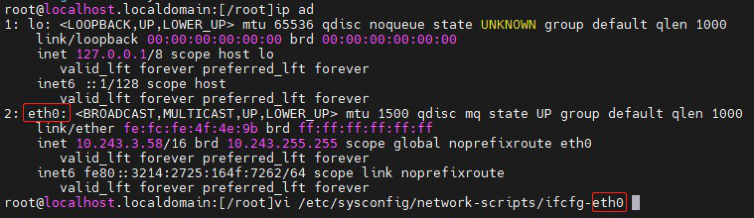
Open the configuration file of eth0. Set BOOTPROTO to static, set ONBOOT to yes to start the interface at boot time, and specify network settings ( IPADDR, NETMASK, GATEWAY, and DNS ). After the modifications, press ESC, type
" :wq ", and then press Enter to quit the file.
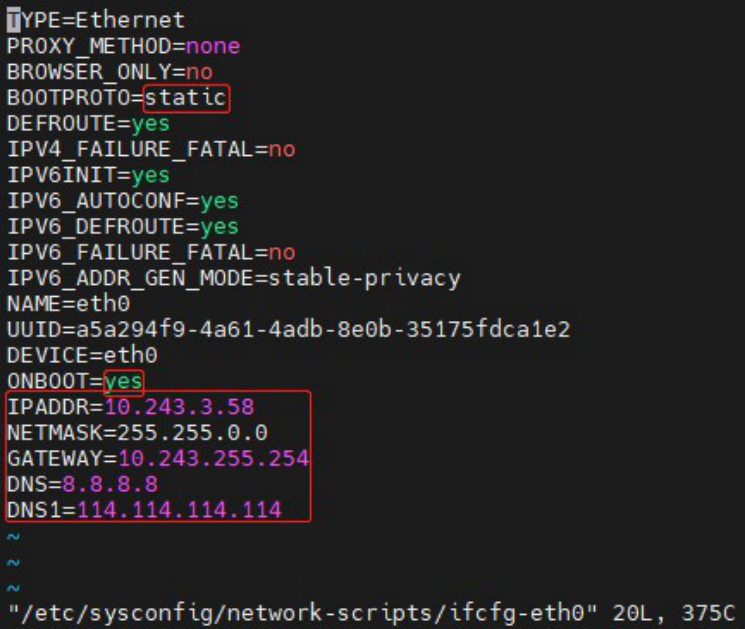
Run systemctl restart network or service network restart to restart the network service for the interface configurations to take effect.


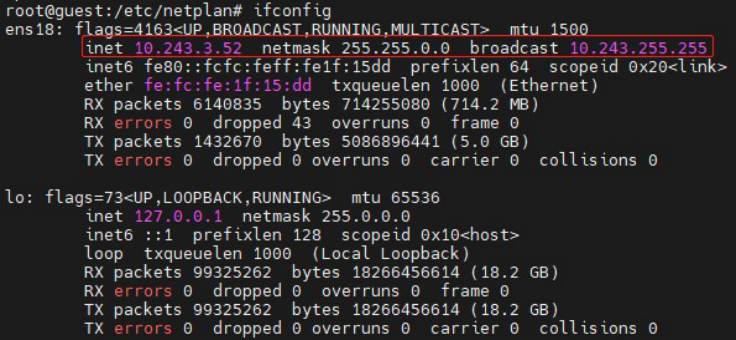
Run ifconfig to check the interface configurations.
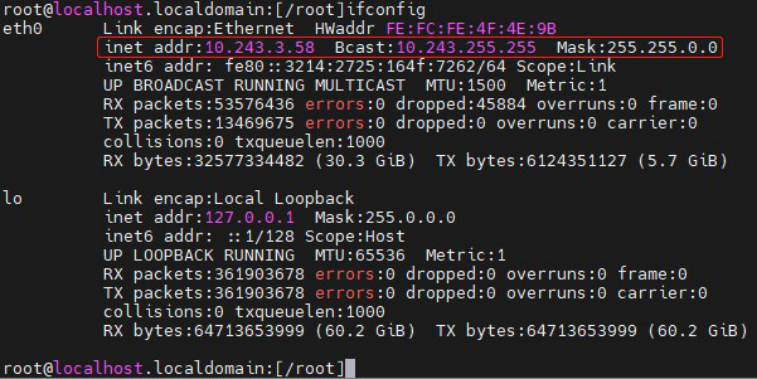
Example 2: Ubuntu
Check the interface information and find the management interface ens18 .
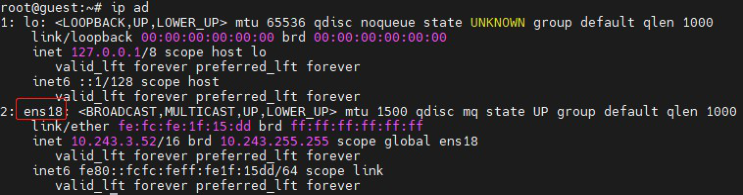
Run vi /etc/netplan/00-installer-config.yaml .

Note:
The number in the preceding command may vary with the environment. Go to the directory
/etc/netplan/ for the accurate file name.

Modify the network settings, including addresses (IP address and subnet mask ), gateway4 (gateway), and nameservers (DNS servers ). After the
modifications, press ESC and type " :wq " to quit the file.
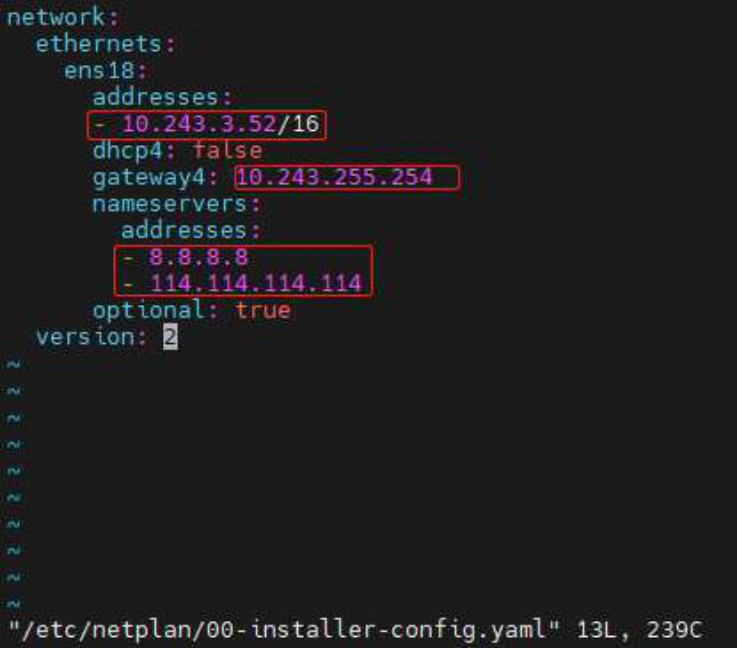
Run netplan apply to restart the network service for the interface configurations to take effect.

Run ifconfig to check the interface configurations.