
2.3.2.2 Silent Installation
Silent installation is an installation without the need for manual intervention. Administrators download the NovaGuard agent installer from the NovaGuard manager and copy the installer to endpoints for installation using portable devices such as USB devices. The procedure is as follows:
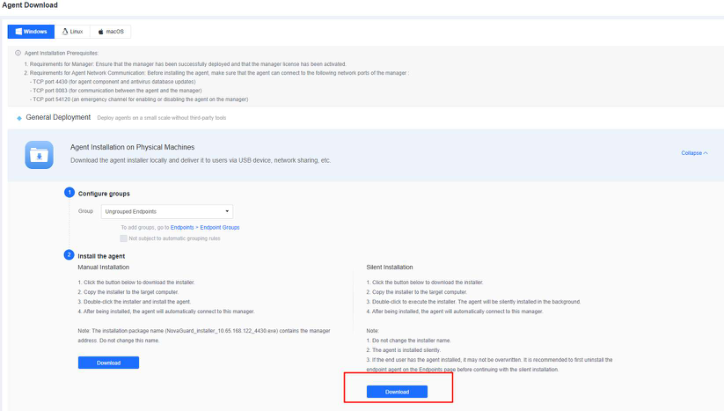
Step 1. Download the NovaGuard agent installer from the NovaGuard manager. Go to System - Agent Deployment - Agent Download, select Windows - Agent Installation on Physical Machines, and click Download under Silent Installation, as shown in the following figure.
Step 2. Right-click the installer to execute it as an administrator or double-click the installer for a silent, automatic installation. After the installation, the NovaGuard agent automatically connects to the NovaGuard manager, and you can find the online endpoint on the Endpoints - Endpoint Groups page of the NovaGuard manager.

Note:
The installer name (like NovaGuard_installer_[ Manager IP] _4430_silence.exe) contains the
IP address of the NovaGuard manager and the word " silence ". Do not change the
installer's name .
Note:
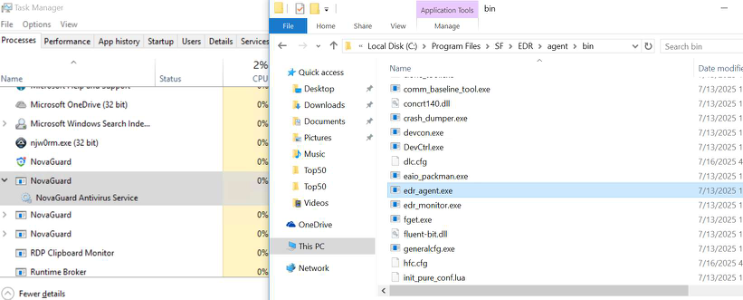
To check the silent installation process, open Task Manager to find the running fget.exe
process. If the process is obtaining files, silent installation is in progress. Alternatively, open
the default installation directory " SF/EDR/agent/bin " and refresh the page to check whether
new files are created.
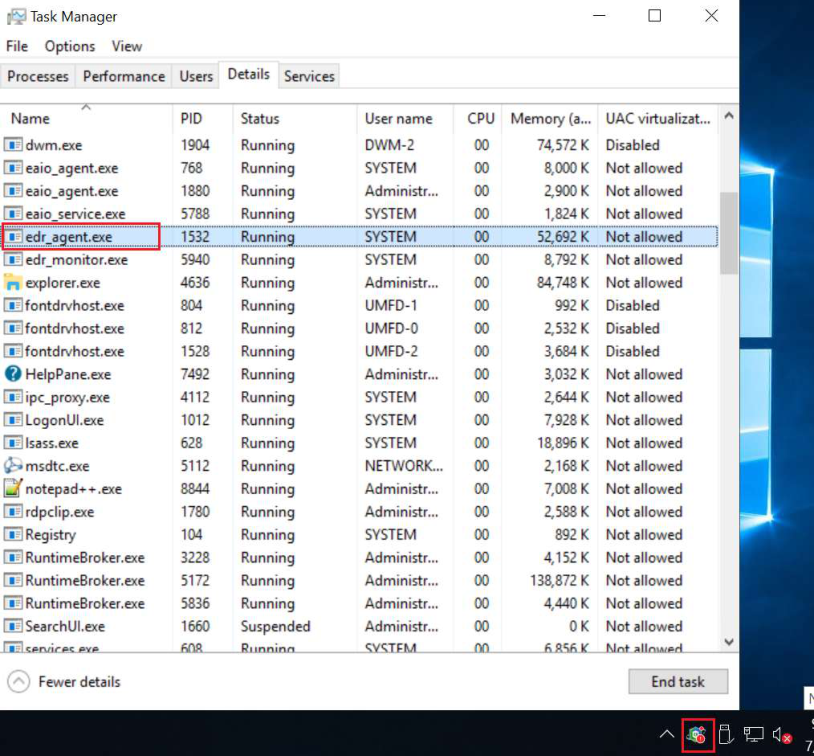
After the NovaGuard agent is successfully installed, the NovaGuard icon appears in the
lower right corner of the screen, and the asset registration window pops up (whether filling
in the information is required depends on the policy on the NovaGuard manager). You can
also find the running edr_agent.exe and sfavui.exe processes in Task Manager.