
2.3.2.6 Installation on Virtual Machines
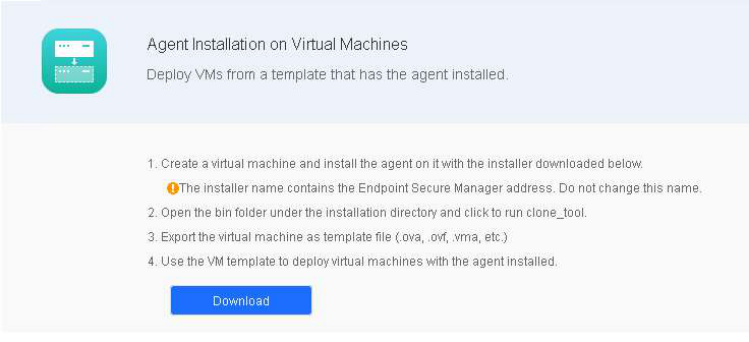
In virtualization environments, administrators can convert a virtual machine with NovaGuard agent installed into a template and create virtual machines in bulk. Go to System - Agent Deployment - Agent Download, select Windows, and click Agent Installation on Virtual Machines in Bulk Deployment, as shown in the following figure.
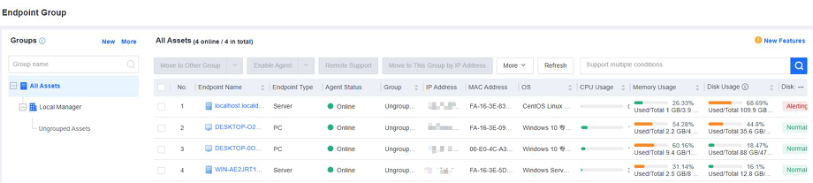
Step 1. Download the installer for standard installation following the instructions in Section 2.4.2.1. The endpoint will go online once the installation is complete.
Step 2. Before exporting a virtual machine, right-click clone_tool.exe under the " xxx/bin/" NovaGuard agent installation directory and execute it as an administrator to ensure that the NovaGuard agent IDs of the created virtual
machines are unique.
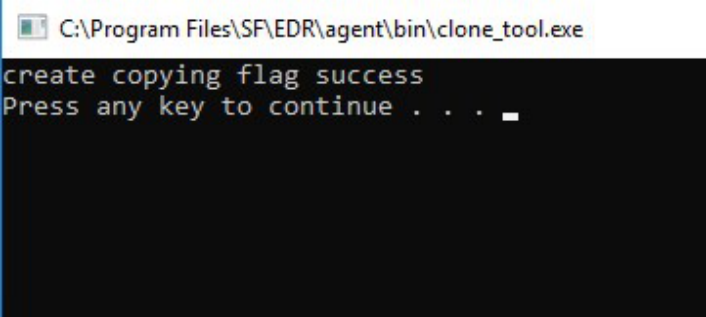
Find the tool, and it is in " C:/Program Files/SF/EDR/agent/bin " by default.
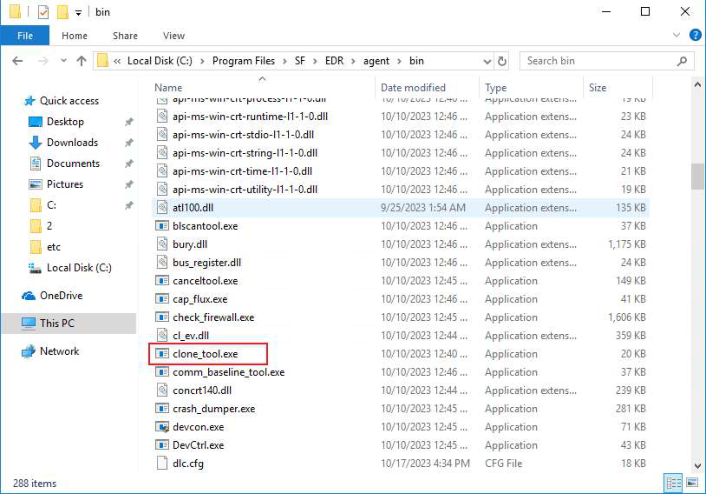
Right-click clone_tool.exe to execute it as an administrator and wait for the prompt " create copying flag success " to appear.
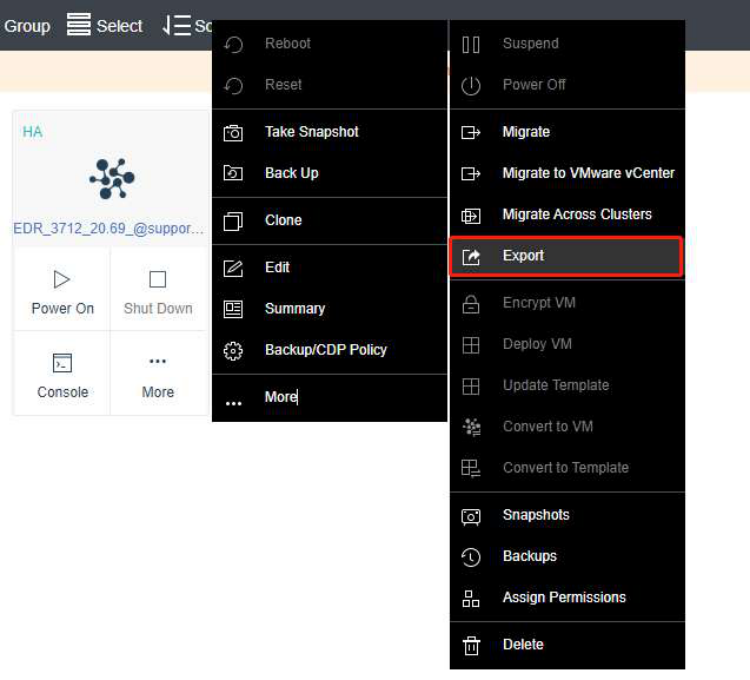
Step 3. Export the virtual machine. The following steps use ForeNova HCI as an example.
Step 4. Select a File Format . OVA is recommended.
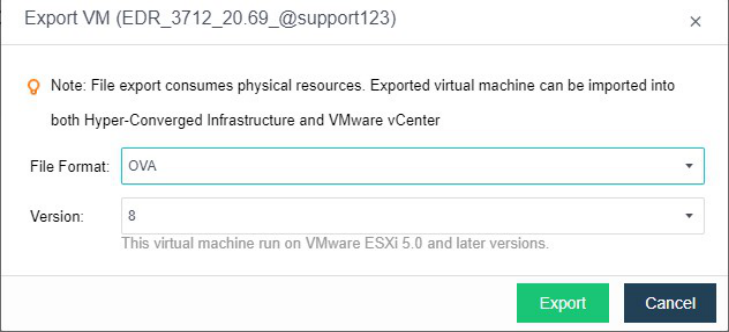
Once the OVA file is exported, you can use it to create virtual machines with NovaGuard agent installed in bulk.