

4.6.1.2 Anti-Malware
On this tab, you can configure the scheduled scan settings, malware scan settings, and antivirus database engine settings.
Scheduled Scan
You can configure scheduled scan settings so that virus scans can be performed on endpoints in the internal network as scheduled, as shown in the following figure.
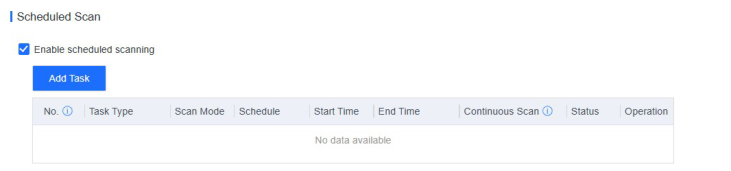
Scheduled scans can be performed in two ways: Quick Scan and Full Scan, each offering three CPU usage options: High CPU, Adaptive, and Low CPU, as described below:
-
High CPU: Scanning consumes the most CPU resources, but the scan speed is the fastest.
-
Adaptive: Dynamically adjusts CPU resources based on the CPU usage. It optimizes the scan speed by leveraging ample CPU resources when the CPU usage is low and minimizing resource consumption when the CPU usage is high, thus ensuring smooth service operations.
-
Low CPU: Scanning consumes no more than 10% of CPU resources, but the scan speed is the slowest.
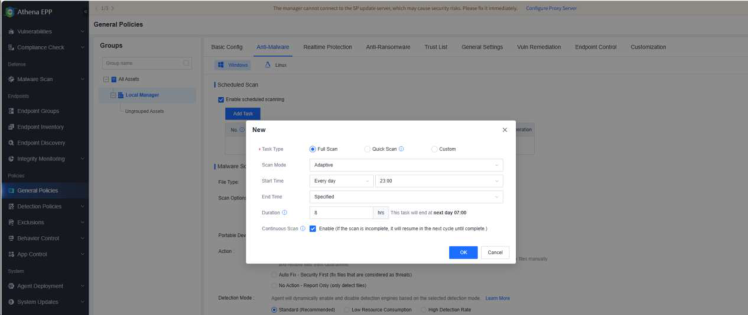
In addition, when you add a scheduled scan task for a Windows endpoint, you can choose to enable Continuous Scan as needed. For example, you have enabled Continuous Scan for a full scan task that is scheduled to run every day from 23:00 to 07:00 the next day. In this case, if the full scan task is not completed in the current cycle, the full scan task will resume in the next cycle until it is completed.
Malware Scan
You can configure settings such as the file types, scan options, actions required for malicious files, detection modes, and CPU usage, as shown in the following
figure.

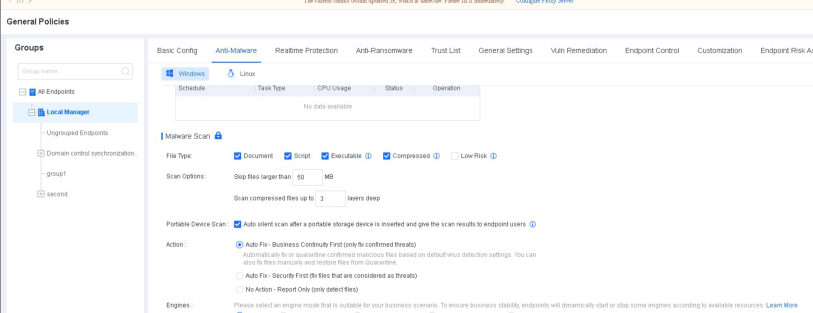
If the Lock icon is displayed, you cannot modify the settings on the NovaGuard agent. If the
Unlock icon is displayed, modification is allowed.
File Type : Available options include Document, Script, Executable, Compressed, and Low Risk .


-
A total of 23 compressed file extensions are supported, including 7z, XZ, BZIP2, GZIP, TAR,
-
Selecting the Low Risk option is not recommended because these files are identified as
posing an extremely minimal threat after analysis. Filtering out low-risk files can improve the
scan speed and reduce the memory usage of ForeNova Engine Zero. Low-risk file types
include the following 42 types:
.vmdk, .iso, .lib, .a, .nsf, .pdb, .dmp, .db, .hdmp, .idb, .pch, .vdf, .pak, .evtx, .imd, .aac, .webm, .
ntf, .cvd, .mof, .mdf, .mdb, .otf, .tlb, .jpg, .jfif, .jpeg, .jpe, .jp2, .png, .gif, .bmp, .mp3, .mp4, .m4
a, .mkv, .wmv, .wma, .tif, .tiff, .flv, and .ogg
Scan Options: You can specify the maximum file size and supported compressed file layers for scanning.
Portable Device Scan: You can initiate a silent scan when a portable device such as a USB flash drive, portable hard disk, mobile phone, or digital camera is connected to an endpoint. The endpoint user will receive the scan results once the scan is complete.
Action : You can specify the response to a detected malicious file. Select between Auto Fix - Business Continuity First, Auto Fix - Security First, and No Action - Report Only . The default action is Auto Fix - Business Continuity First .
-
Auto Fix - Business Continuity First: Automatically fix or quarantine confirmed malicious files based on the default virus detection settings; do not automatically fix or quarantine suspicious files, but report them to the NovaGuard manager, allowing endpoint users to fix them.
-
Auto Fix - Security First: Automatically fix or quarantine all malicious files and allow endpoint users to manually restore files from the Quarantine area. This option is suitable for scenarios with enhanced protection requirements.
-
No Action - Report Only: Report malicious files to the NovaGuard manager, but do not automatically fix or quarantine them. This option suits scenarios where an on-duty security professional is responsible for fixing threats.
Detection Mode : Three detection modes are supported, including Standard (Recommended), Low Resource Consumption, and High Detection Rate . Select a mode that aligns with your business scenario, as shown in the following figure.


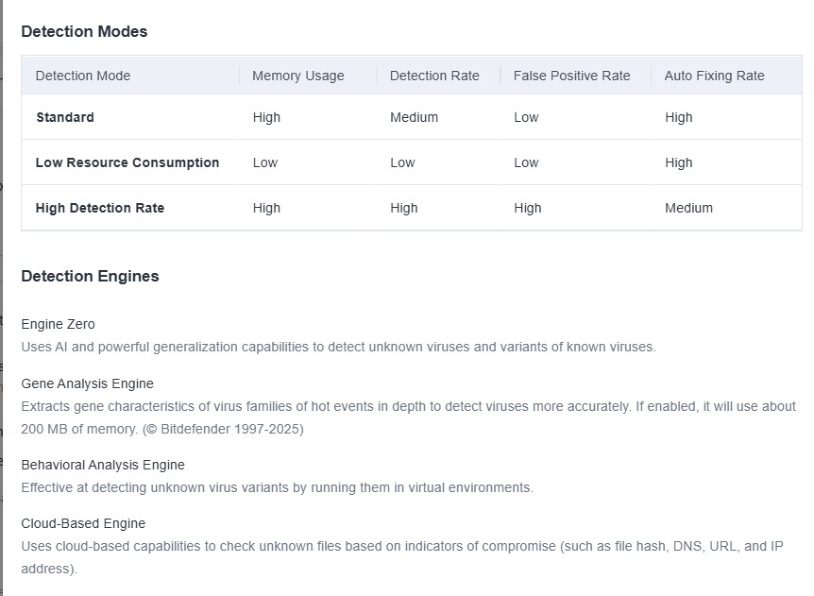
- In the High Detection Rate mode, false positives will be higher than other modes.
Therefore, do not select this mode before a thorough assessment is carried out.
CPU Usage : If Restrict is selected, the CPU usage for NovaGuard is minimized. It may result in a longer virus scan duration. It applies to scenarios involving endpoints with legacy systems, virtual desktops, and overloaded systems.


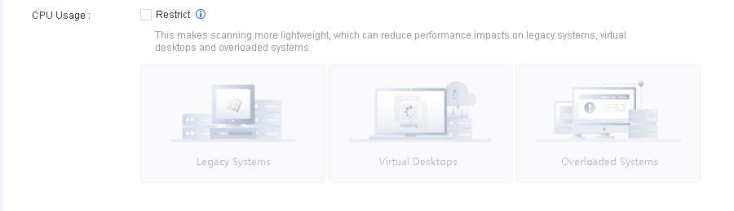
When Restrict is selected, the CPU usage of NovaGuard varies in different virus scan
modes:
-
High CPU: Consumes no more than 50% of CPU resources.
-
Low CPU: Consumes no more than 5% of CPU resources.
Antivirus Database Engine
You can specify the antivirus database engine setting as Update via Manager or Update via update servers . If Update via update servers is selected, you can configure multiple update servers (including the NovaGuard manager), as shown in the following figure.
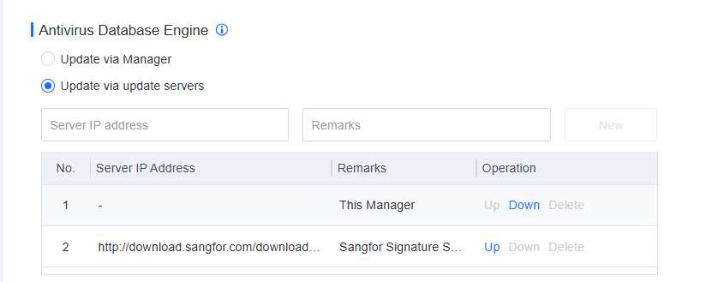
In the Operation column, you can click Up or Down to adjust the order of the update servers for the antivirus database.
