

4.6.1.8 Endpoint Control
On this tab, you can configure the following settings: USB device control, unauthorized outbound access detection, remote support control, and cleanup. Among them, USB device control is available for both Windows and macOS endpoints, whereas other settings are available only for Windows endpoints.
1. USB Device Control
Unauthorized access to USB storage devices can expose endpoints to various threats, such as viruses, Trojans, data leaks, and tampering. By leveraging the USB device control feature, you can deny or allow the usage of mobile devices such as USB flash drives, removable hard disks, and mobile phones.
Furthermore, you can set up notifications to alert endpoint users, mitigating the risks associated with insufficient control over mobile devices.
For Windows endpoints, go to Policies - General Policies - Endpoint Control, and select Enable USB device control for Windows PCs and Enable USB device control for Windows Servers under USB Device Control as needed.
For macOS endpoints, go to Policies - General Policies - Endpoint Control, and select Enable under USB Device Control .
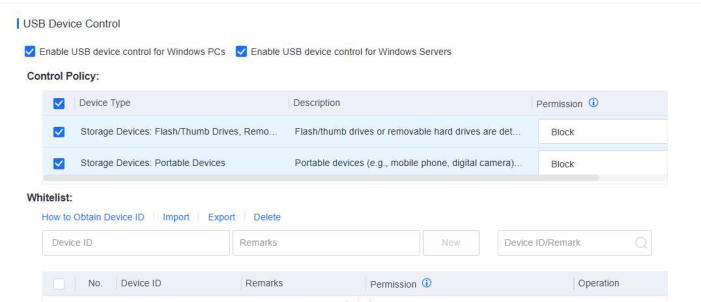
You can set the control policy for the storage features of USB flash drives, removable hard disks, and portable devices (such as mobile phones and digital cameras).
Control policies include the following:
Block : The device and the files it contains are not visible to users.
Read & Execute : Data can be read from but cannot be written to the device. The files it contains can be executed.
Read : Data can be read from but cannot be written to the device. The files it contains cannot be executed.
Full Access (With Notification) : Data can be read from and written to the device. Pop-up notification will be displayed on the endpoint and related logs will be reported to the manager.
Whitelist
When certain USB devices are allowed, add them to the whitelist and complete the required information settings, as shown in the following figure.
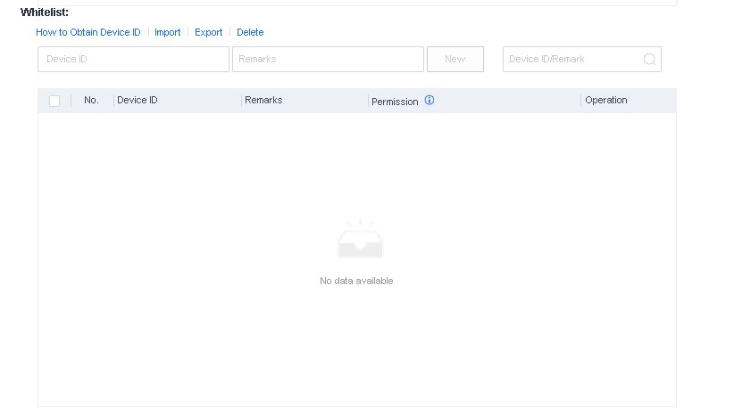
You can import many devices in batches if you need to add them.
Notify
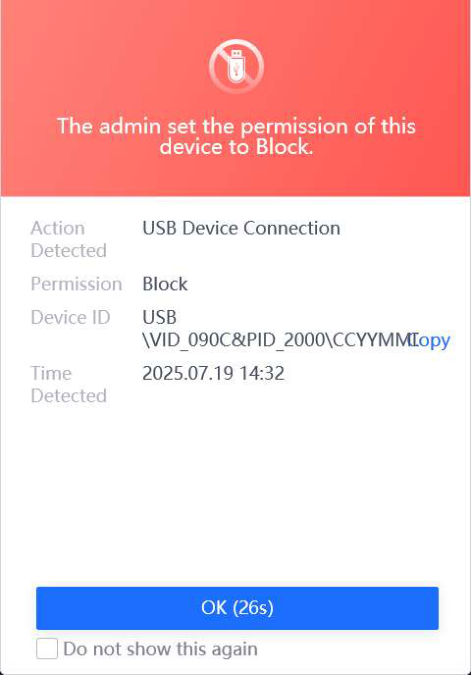
After selecting the Notify user when a device with permissions other than Full Access is detected, endpoint users will receive notifications when attempting to use devices blocked on servers or endpoints, as shown in the following figure.
Note:
The USB device control feature is available for Windows and macOS endpoints. You can
block USB devices or set the permissions of the devices to Read-Only for macOS endpoints.
2. Unauthorized Outbound Access Detection
Unauthorized outbound access occurs when an endpoint in the internal network connects to an unauthorized target server. NovaGuard can detect unauthorized outbound access by utilizing the ping command and respond with actions like disconnecting the endpoint from the network, shutting down the endpoint, and notifying users if such access is identified, enabling real-time control of endpoints.
Settings for this feature are shown in the following figure.
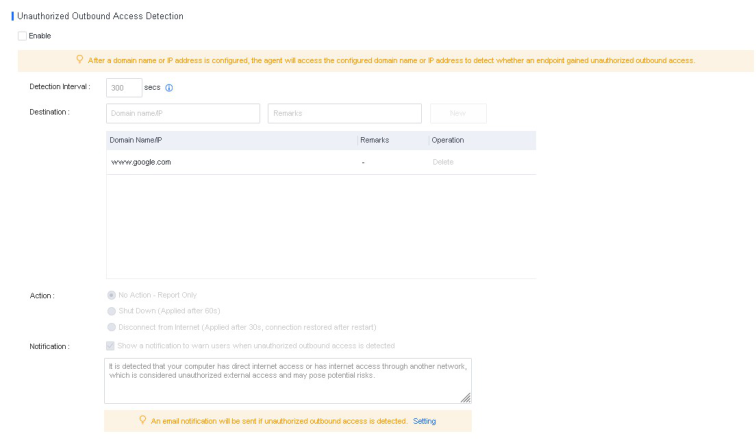
Detection Interval : The interval for detecting unauthorized outbound access on an endpoint. You can set the detection interval to a value between 60 to 3,600 seconds.
Destination : The destination address for unauthorized outbound access is www.google.com by default. You can add IP addresses or domain names.
Action : The method for handling detected unauthorized outbound access.
-
No Action – Report Only : Only display a notification.
-
Disconnect from Internet(Applied after 30s, connection restored after restart) : For Windows Vista and above, the result of this action is similar to endpoint isolation because the endpoint can only communicate with the NovaGuard manager. As an administrator, you can restart the NovaGuard agent on the Endpoint page to restore the Internet connection. For Windows Server 2003 and Windows XP, this action disables the NIC, and the endpoint user must manually enable the NIC or restart the endpoint.
-
Shut Down : The endpoint will shut down after a 60-second countdown.
Notification : When unauthorized outbound access is detected on an endpoint, a notification appears in the lower right corner of the screen to warn the endpoint user. You can specify the content of the notification in the Notification text box.
Email notification : When unauthorized outbound access is detected on an endpoint, you can receive an email notification as an administrator.
3. Remote Support Control
When an exception occurs on a managed endpoint, you can remotely control the endpoint as an administrator to help solve the exception quickly and safely.
Prerequisites
You can remotely control an endpoint if the endpoint user has enabled Admin Remote Control on the NovaGuard agent. To set this feature, right-click the tray icon of the NovaGuard agent on the endpoint, as shown in the following figure. This feature is enabled by default.
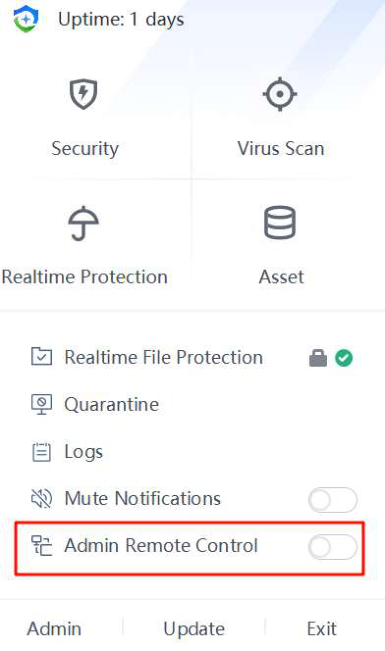
Scenario 1: Remote control of an endpoint without user consent
You can remotely control an endpoint without user consent. This configuration applies to an unattended scenario:
Go to Policies - General Policies - Endpoint Control and select Not Required for User Consent in the Remote Support Control section, as shown in the following figure.
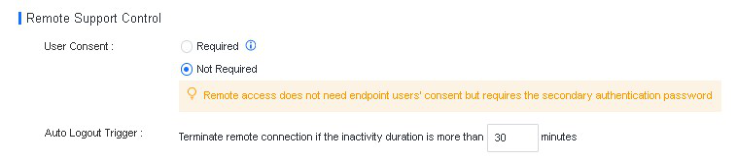
Go to Endpoint - Endpoint Groups, select the endpoint you want to control, and click Remote Support, as shown in the following figure.
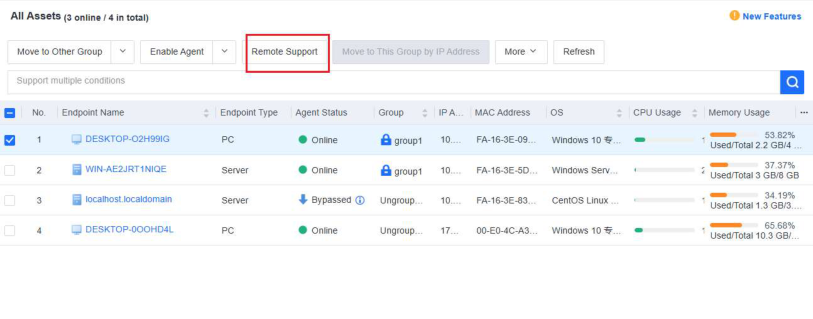
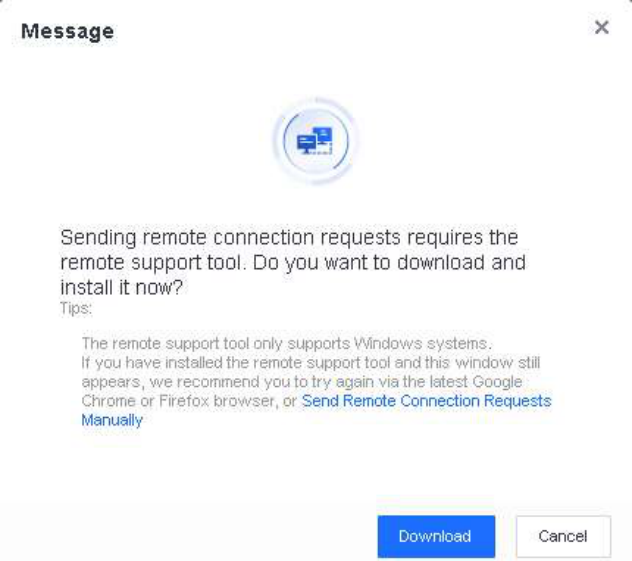
When you initiate the remote control for the first time, a message indicates that you need to download UltraVNC Viewer(the remote control tool). Click Download to download and install the tool, as shown in the following figure.
After you install UltraVNC Viewer, initiate remote control again. A message box appears, as shown in the following figure.
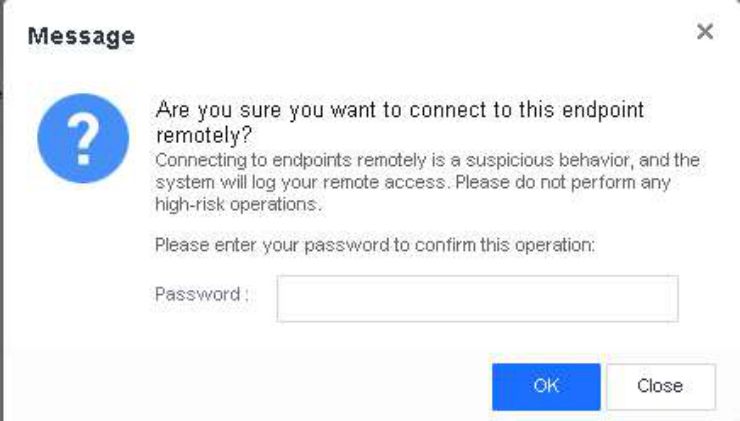
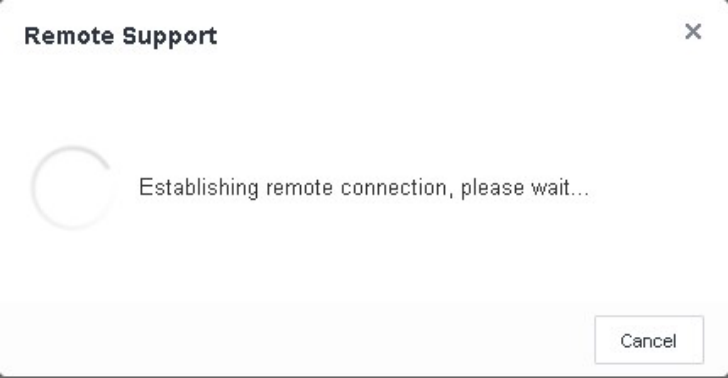
To confirm that you are an administrator, you need to enter the password of your administrator account and click OK to establish a remote connection to the endpoint, as shown in the following figure.
Scenario 2: Remote control of an endpoint with user consent
You can also specify that user consent is required to control an endpoint remotely. This configuration applies to a constantly attended endpoint sensitive to remote operations:
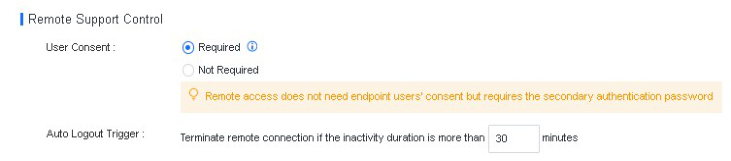
Go to Policies - General Policies - Endpoint Control and select Required for User Consent in the Remote Support Control section, as shown in the following figure.
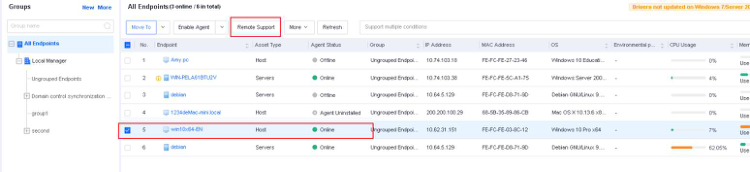
Go to Endpoint - Endpoint Groups, select the endpoint you want to control, and click Remote Support, as shown in the following figure.
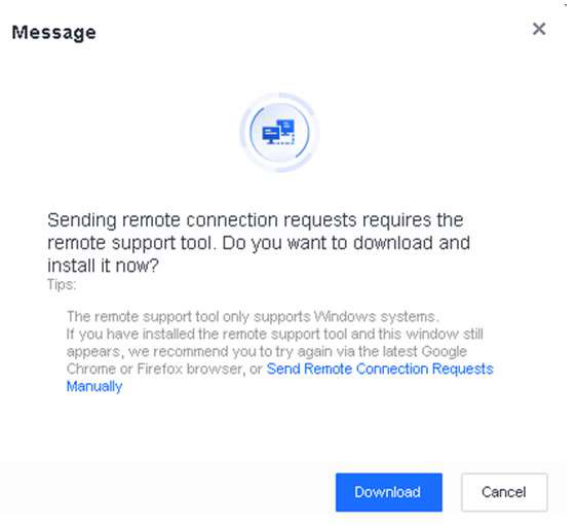
When you initiate the remote control for the first time, a message indicates that you need to download UltraVNC Viewer(the remote control tool). Click Download to download and install the tool, as shown in the following figure.
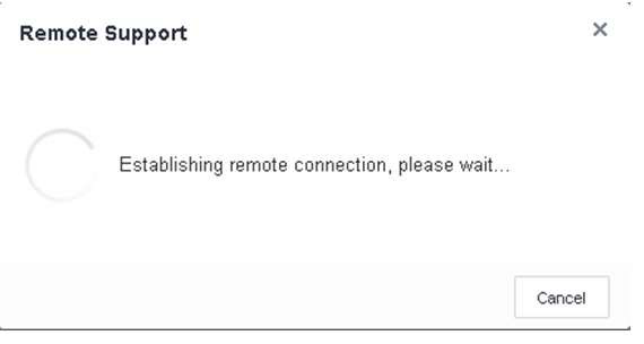
After you install UltraVNC Viewer, initiate remote control again. A message appears, as shown in the following figure.
An NovaGuard agent notification will be shown on the endpoint.
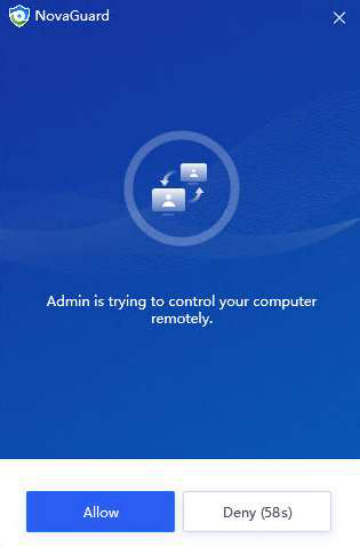
Once the endpoint user clicks Allow, you can remotely control the endpoint.
To confirm that you are an administrator, you need to enter the password of your administrator account and click OK to establish a remote connection to the endpoint, as shown in the following figure.
Note:
- Only the Super administrator and security administrator have remote control permissions.
The communication is fully encrypted.
- By default, a random port is used for the remote control of an endpoint. You can go to
System - System - General and specify the port for remote control in the Remote Support
section.
- Remote control is supported by endpoints running on Windows XP, Windows 7, Windows
8, Windows 8.1, Windows 10, or Windows 11.
4. Cleanup
You can enable this feature to free up the storage space to improve the endpoint system performance.
