
Deploy the NovaSensor OVA
Deploying the NovaSensor OVA
Please take care of the following:
- Please be aware of the specifications within the OVA
16 vCPU, 16GB RAM, Disk1 64GB, 3 vNIC
The NovaSensor OVA can be downloaded here:
https://dl.forenova.com/share/NovaSensor/
Look for the latest OVA file in this directory
Please make sure you are aware of the specifications, if the specifications are not met, the installation might fail. Some specifications of the NovaSensor can be adjusted after importing the OVA file.
Importing the OVA file
After downloading the OVA file, please import the file in your ESX environment, The examples in this document use direct import in ESXi, of course also vSphere can be used.
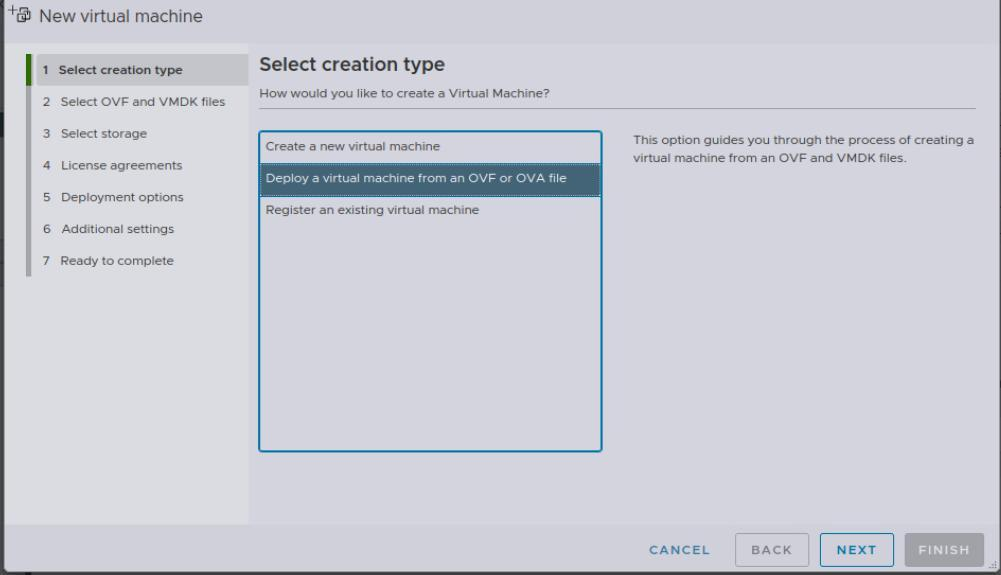
Select deploy a VM via OVA:
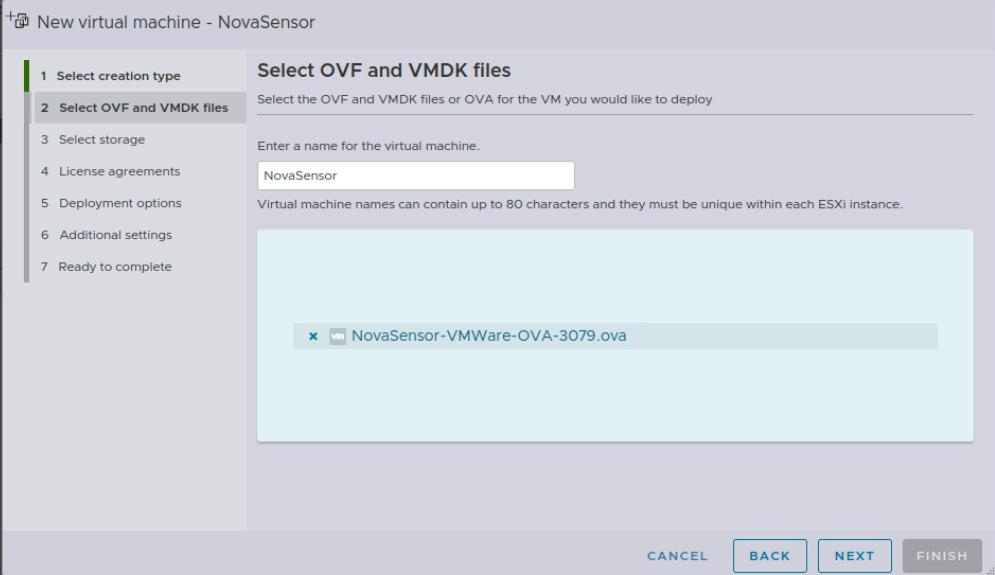
Give a name to the new VM and select the OVA file to import:
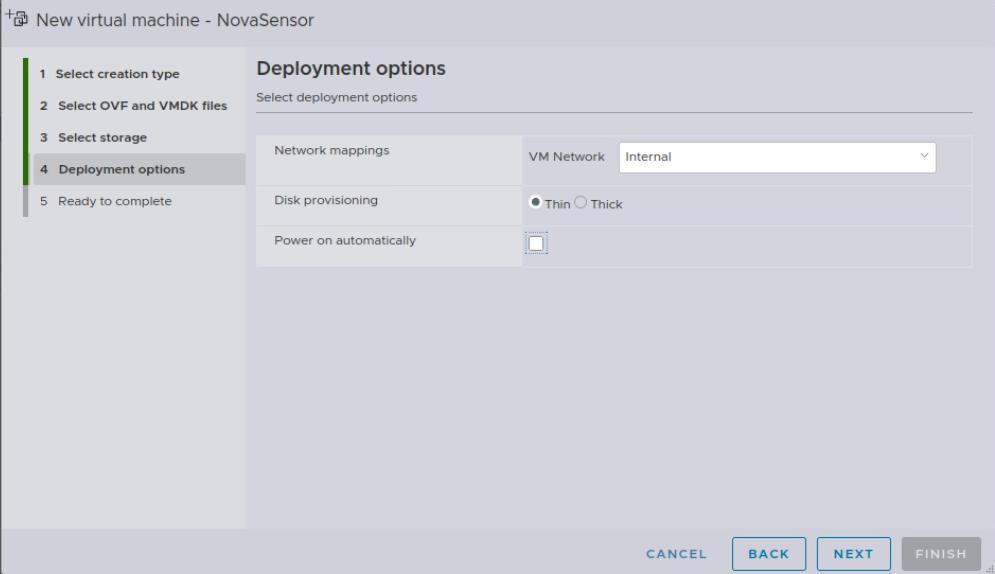
In deployment options check the correct network settings (vSwitch connections) and deploy thin or thick according to your standard.
Import the OVA file and check the status:
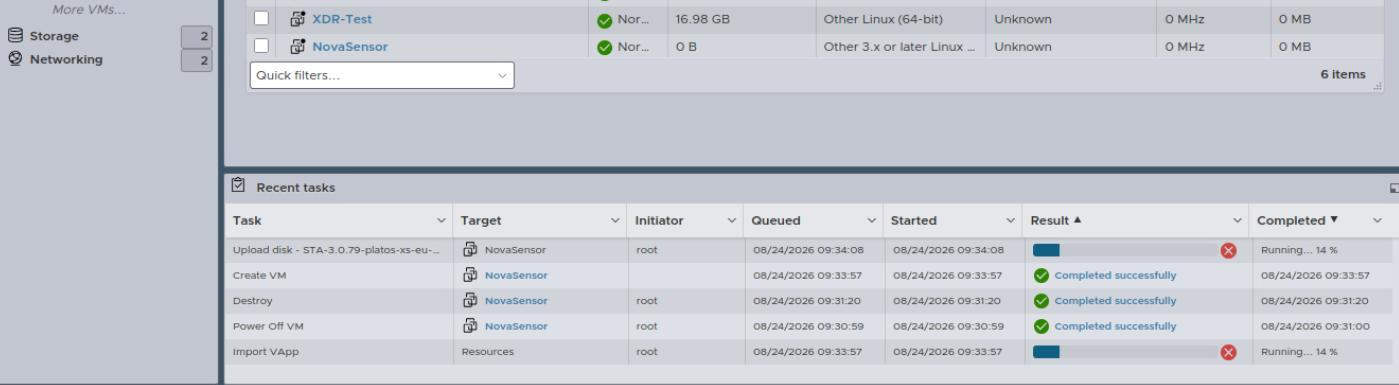
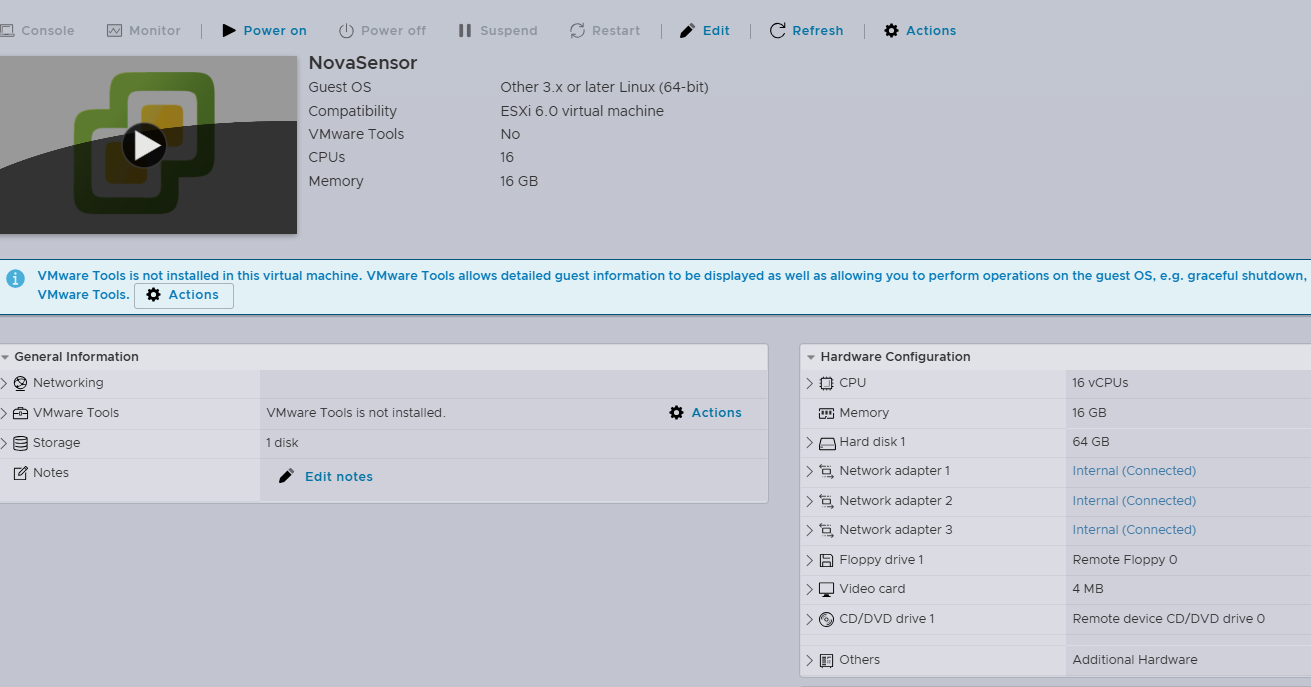
Configure the imported VM
After importing, check the config.
At least 8GB of RAM and 8 vCPU are needed (import is 16vCPU and 16GB mem)
Check how many network adapters you want to connect.
At least 1 for LAN and 1 for mirror port are needed; multiple mirror ports are supported.
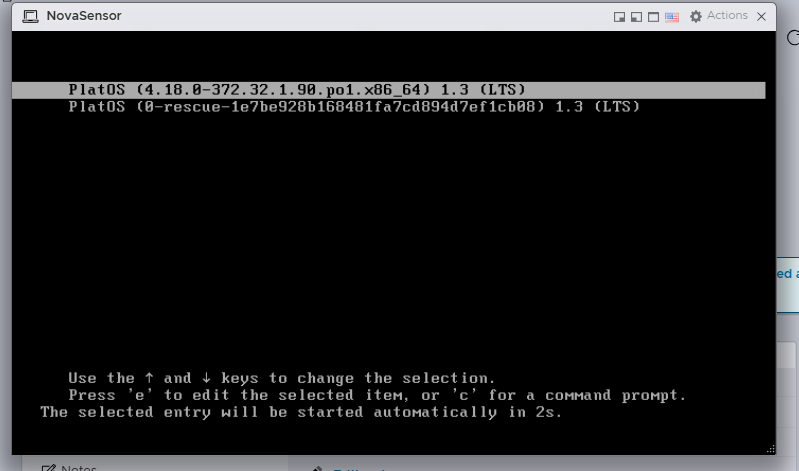
Boot up the VM after setting the correct hardware specifications:
After booting is finisched, login with following credentials:
User:admin
Pass: adminforenovanetwork
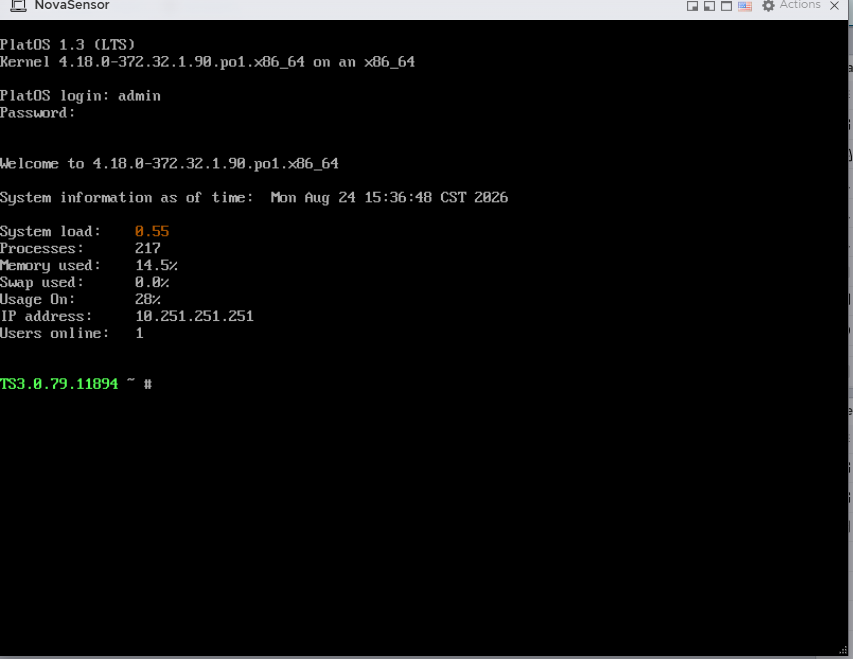
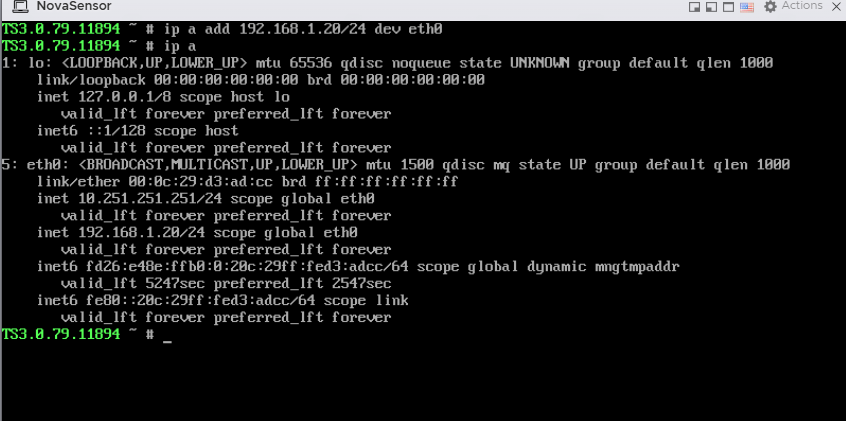
Set a dedicated IP address with the command:
ip a add x.x.x.x/x dev eth0
where x.x.x.x/x is your fixed IP address and subnet (for example 192.168.1.20/24)
Configure the remaining settings on Web interface
After the IP address is set, on a machine in the same network connect a web browser to the ip address you just have set on https
Login to the web interface of the NovaSensor with
User:admin
Pass: admin
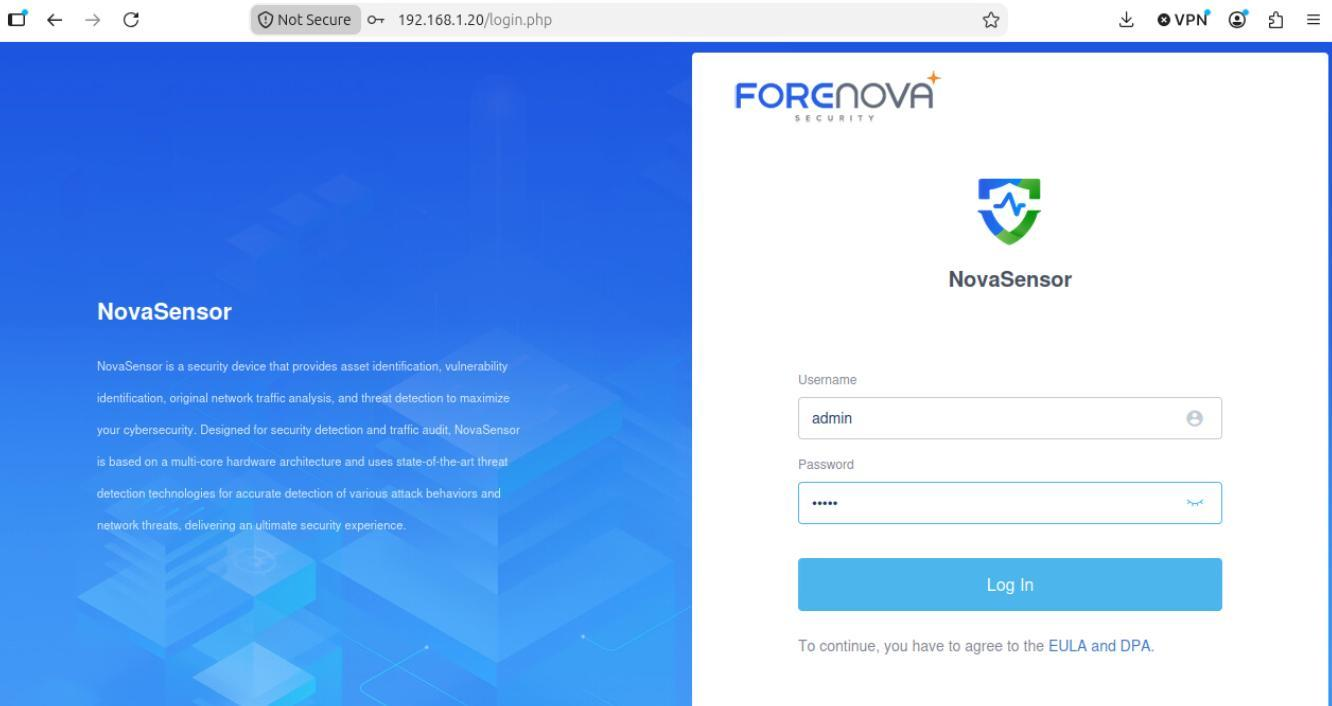
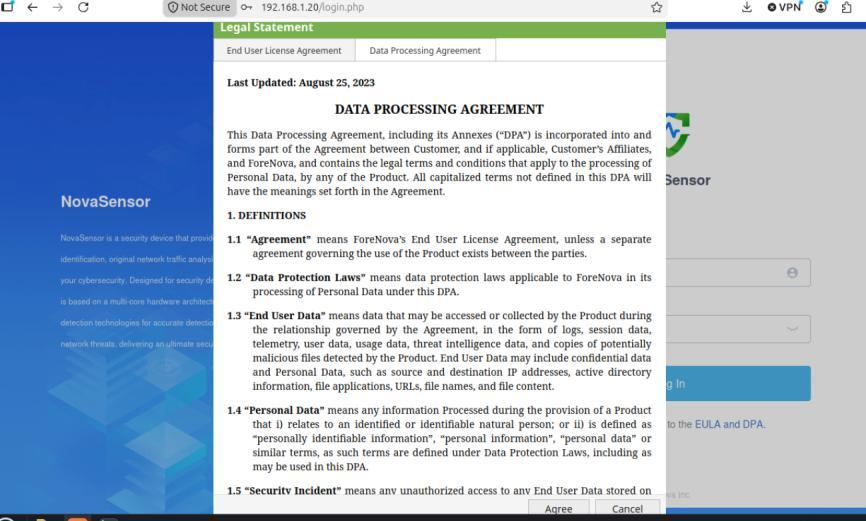
Accept the EULA and DPA to continue.
After logging in again, please set your own password according to the password standard.
After that, please login again with the newly set credentials.
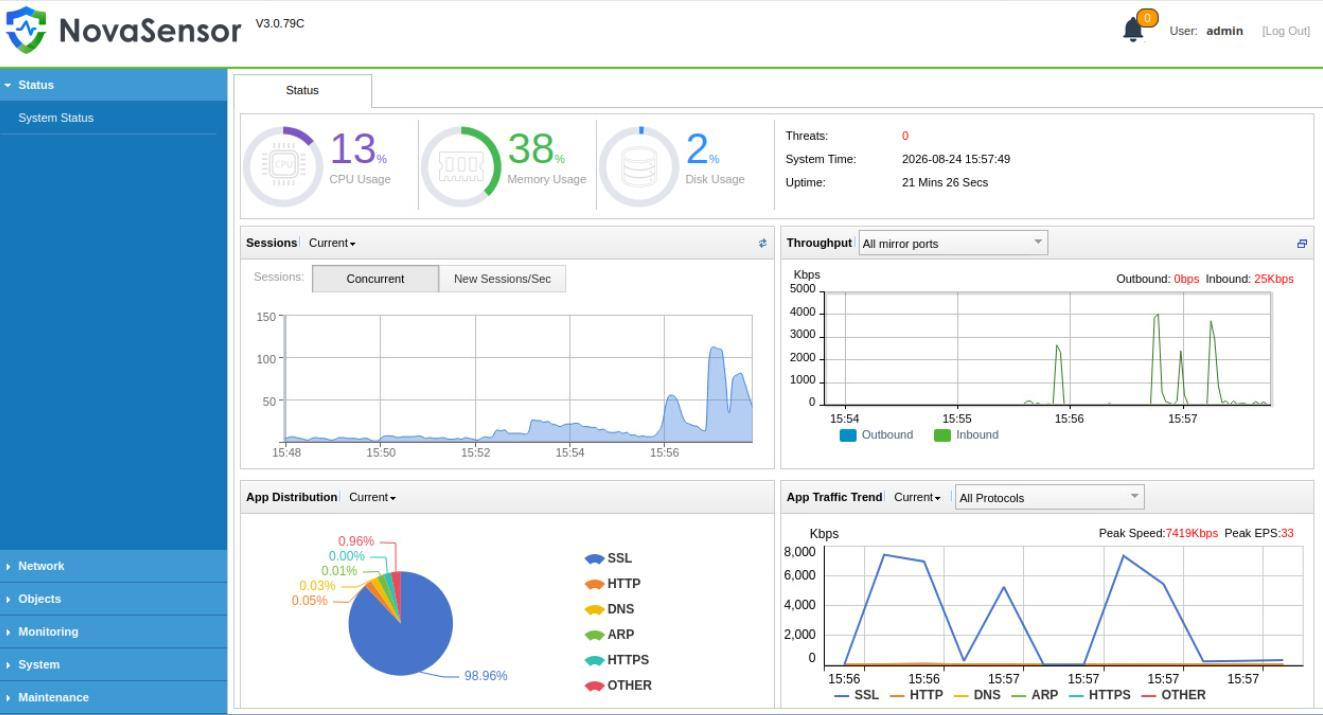
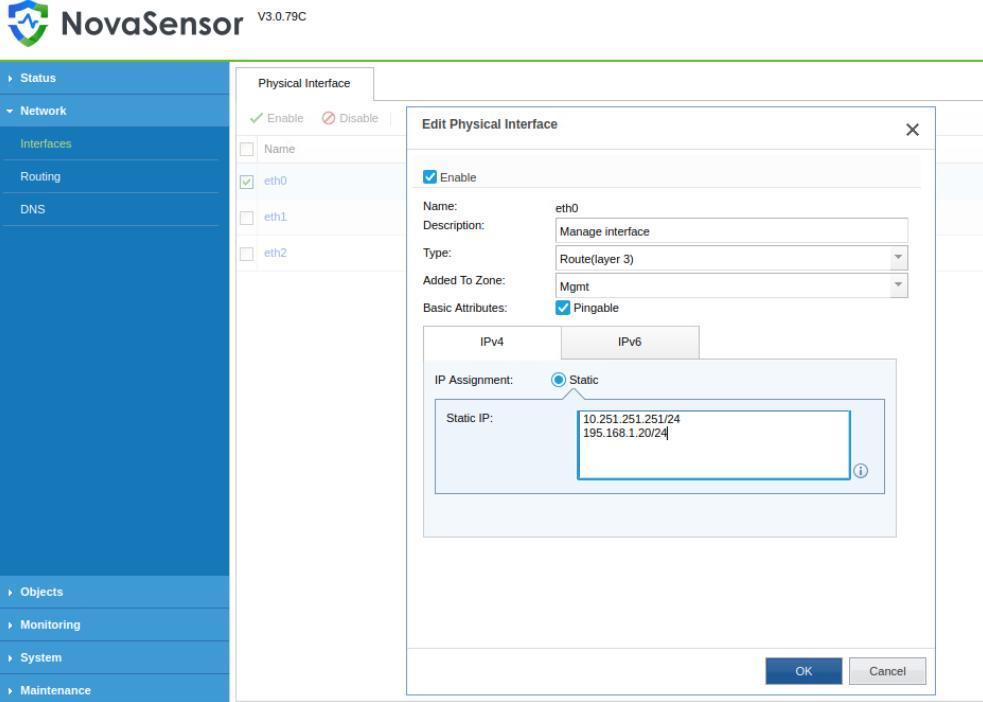
Go to network – Interfaces in the left menu and set the correct IP address, subnet mask and routing settings for the network of the NovaSensor:
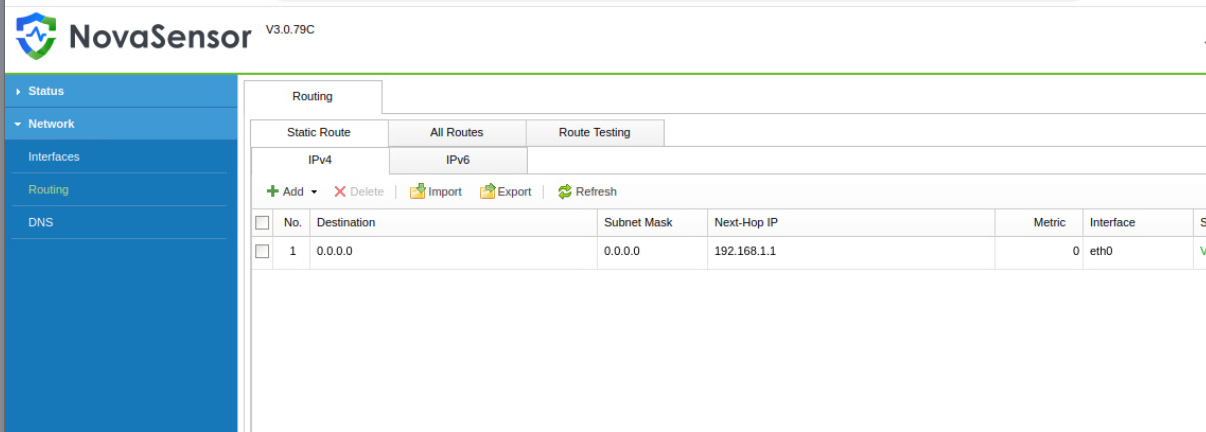
The settings for routing:
After the network settings are correct, you are ready to connect the NovaSensor to the ForeNova MDR backend.
Your CSM can provide you with the necessary key
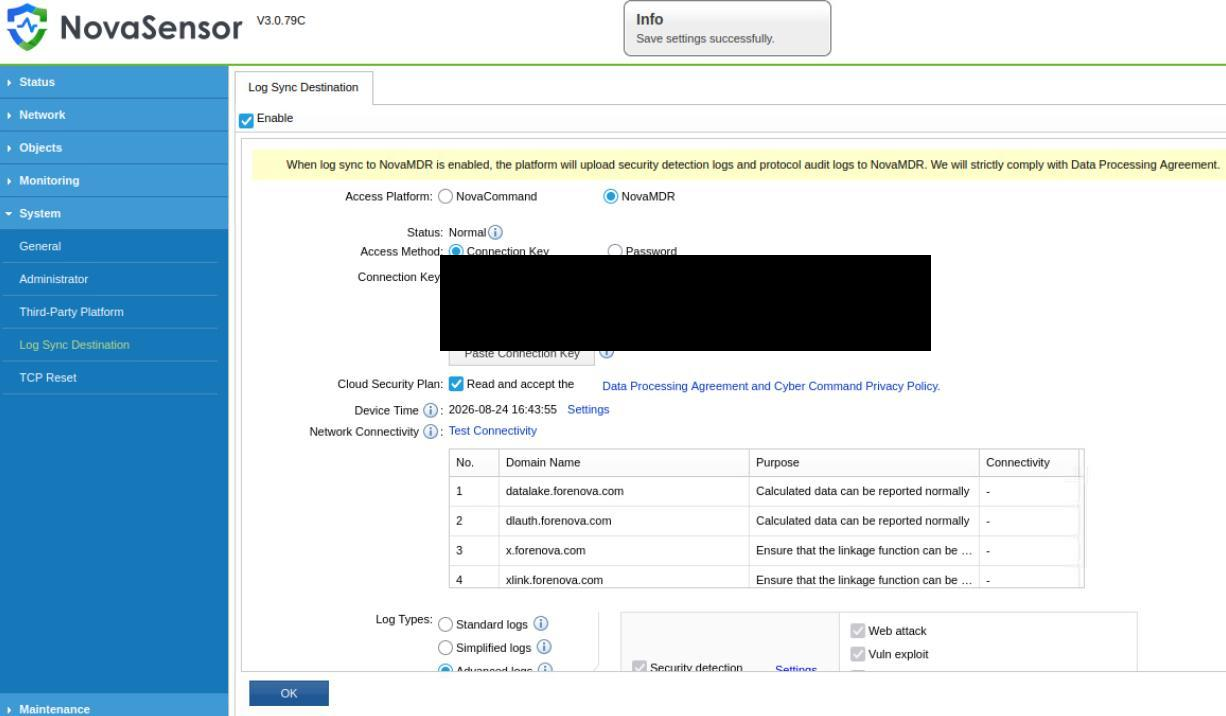
Go to System – Log Sync Destination and enable this.
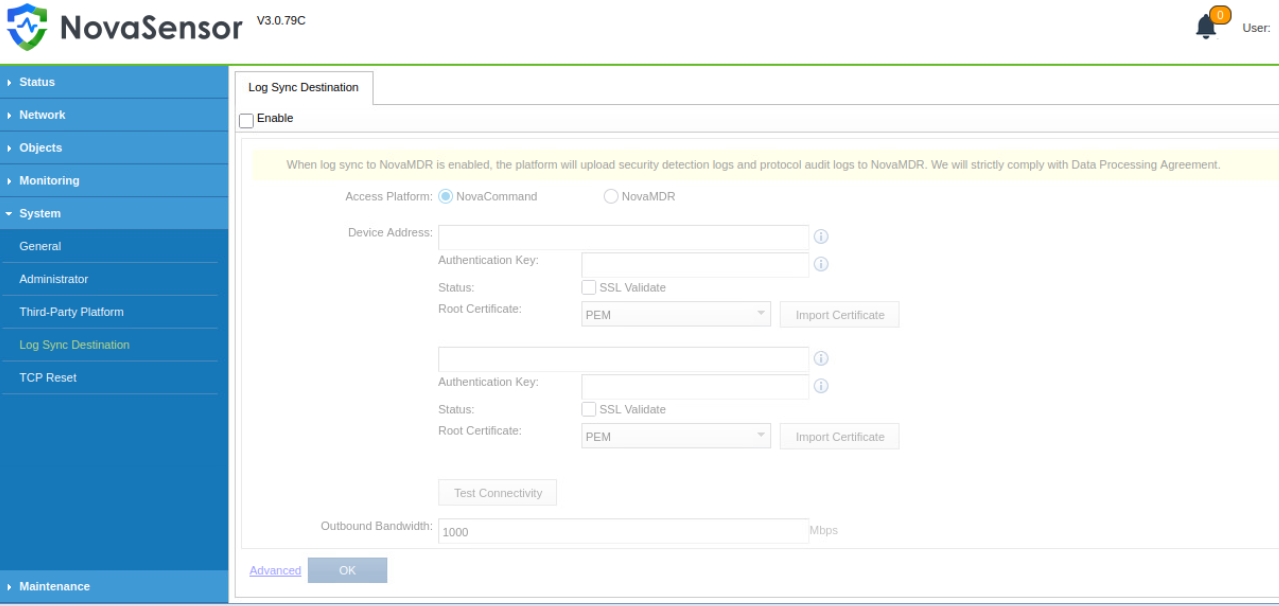
After enabling, select NovaMDR and Connection Key
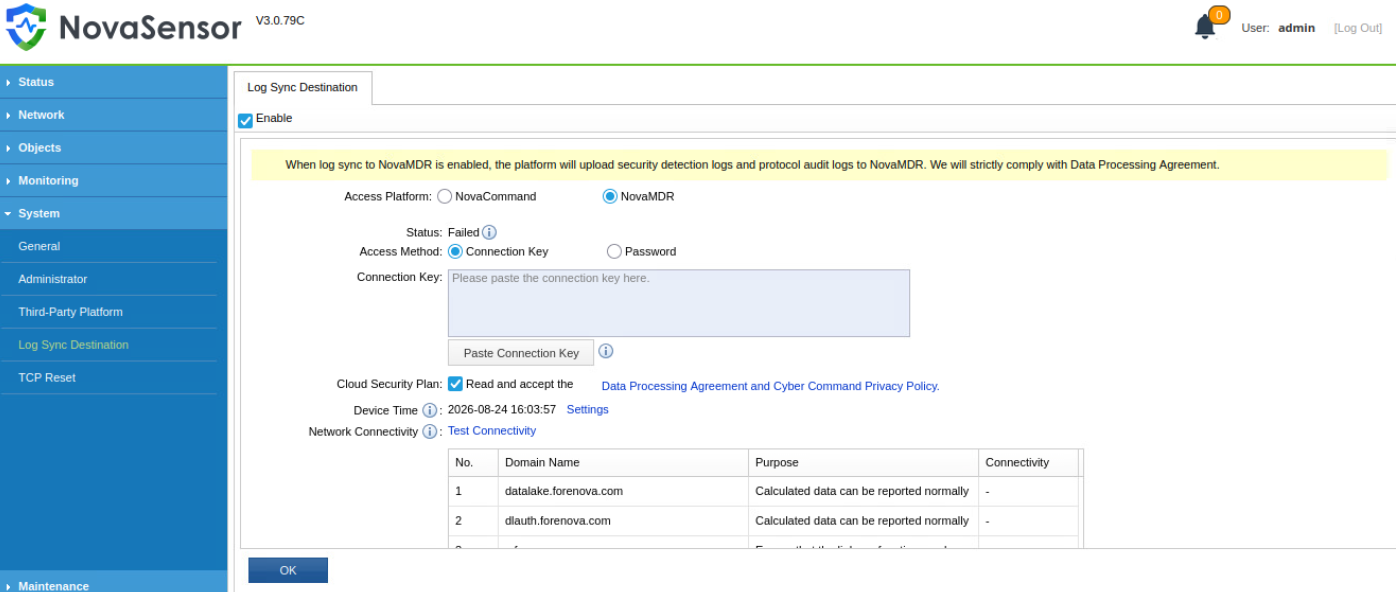
Paste the key in the screen and on OK button in end of the screen: