

Set up the ForeNova XDR Broker
NovaXDR Broker Setup
Deploying the NovaXDR Broker
Please take care of the following:
- Please be aware of the specifications:
4 vCPU, 8GB RAM, Disk1 265GB
The NovaXDR Broker can be downloaded in the following formats:
- Direct Import files for Proxmox
- VMDK disk (VMWare)
- VHDX disk (Hyper-V or Azure Cloud) The files can be found at the download section: https://dl.forenova.com/share/xdr/
Please make sure you are aware of the specifications, if the specifications are not met, the installation might fail. Specifications of the Nova XDR Broker can be found on top of this document.
Creating the VM
Create the VM with the specifications and import the disk of your choice.
After that, start the VM and see if it boots up successfully.
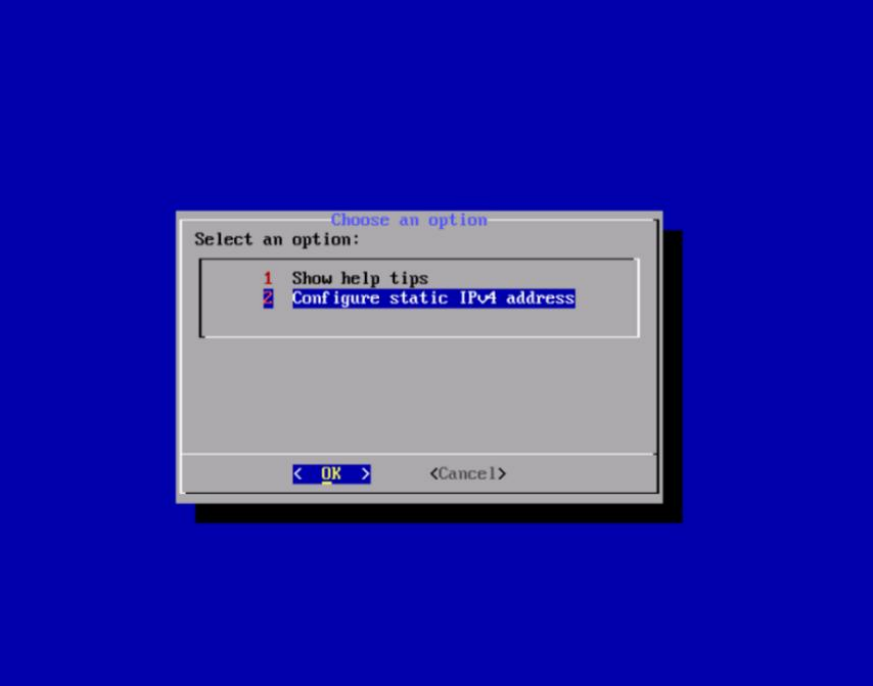
You should see an boot screen like this:
Setting the IP address
When the VM is booted you can set the IP information through option 2
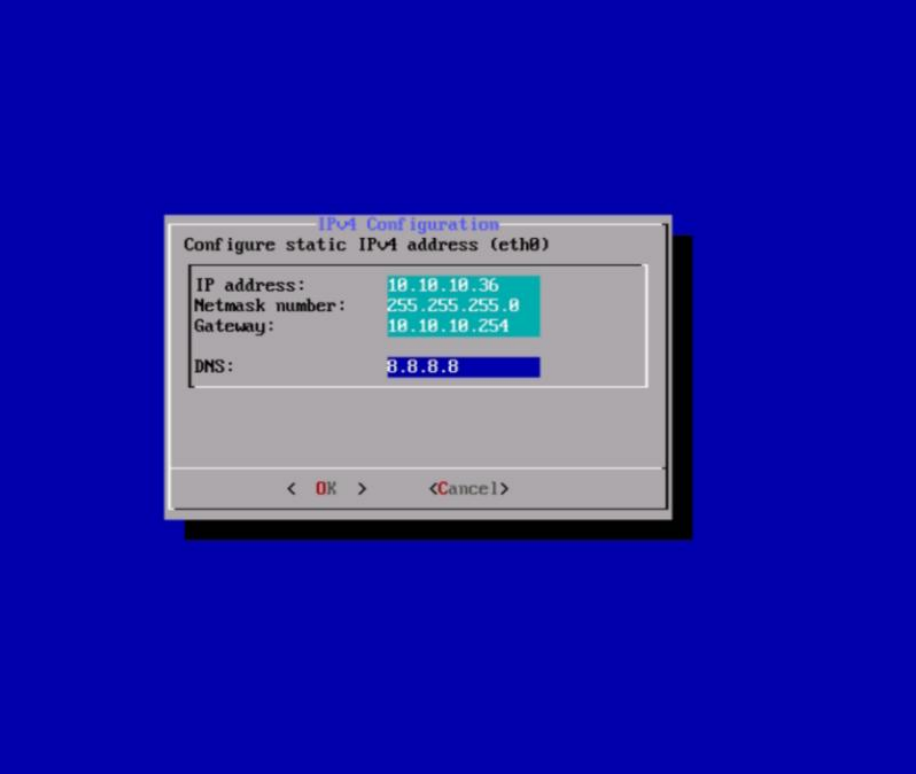
Make sure this IP address can access the internet and resolve the addresses needed for the MDR and XDR services of ForeNova
Connecting to the Web Interface
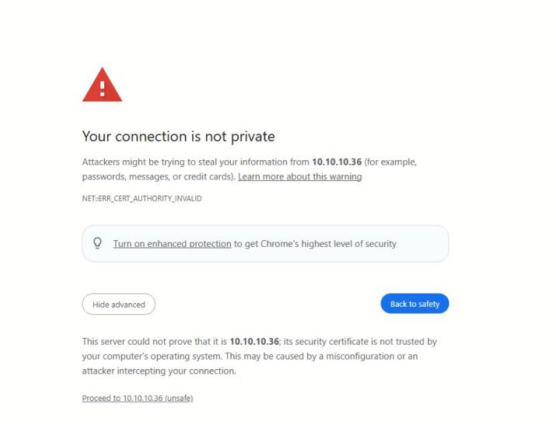
Check if you can reach the web interface at https://youripaddress
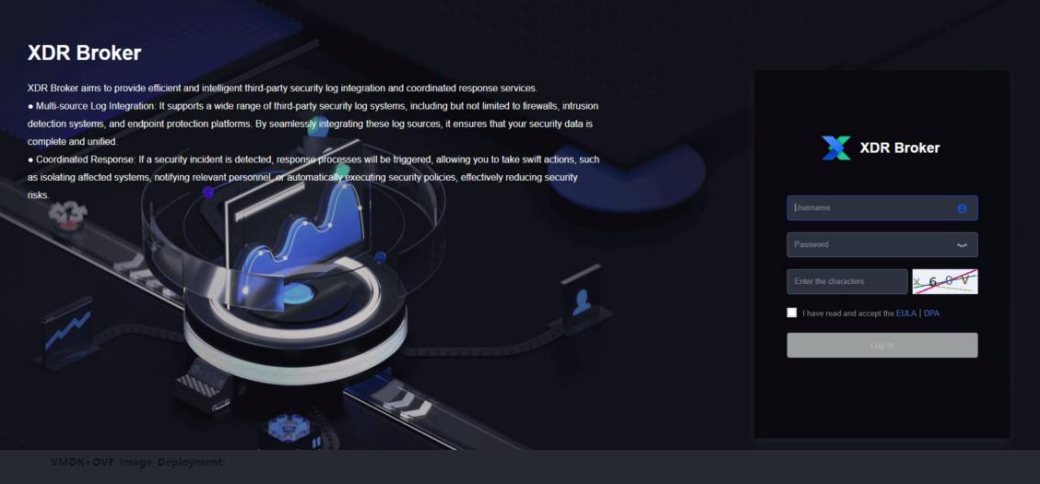
You can use the following credentials to login:
user: admin password: 6A%rt#k9
Connecting the XDR Broker to ForeNova MDR
After you logged in to the broker, please contact your CSM for the connection key. Copy and paste the connection key into the field and click on Save and Connect. Your CSM will check if the backend is now connected to the NovaXDR Broker
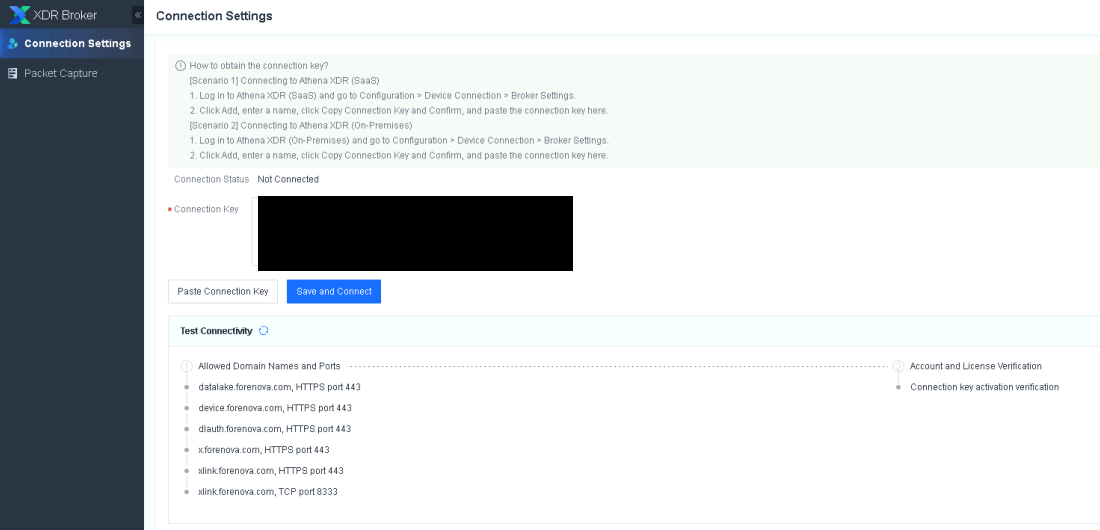
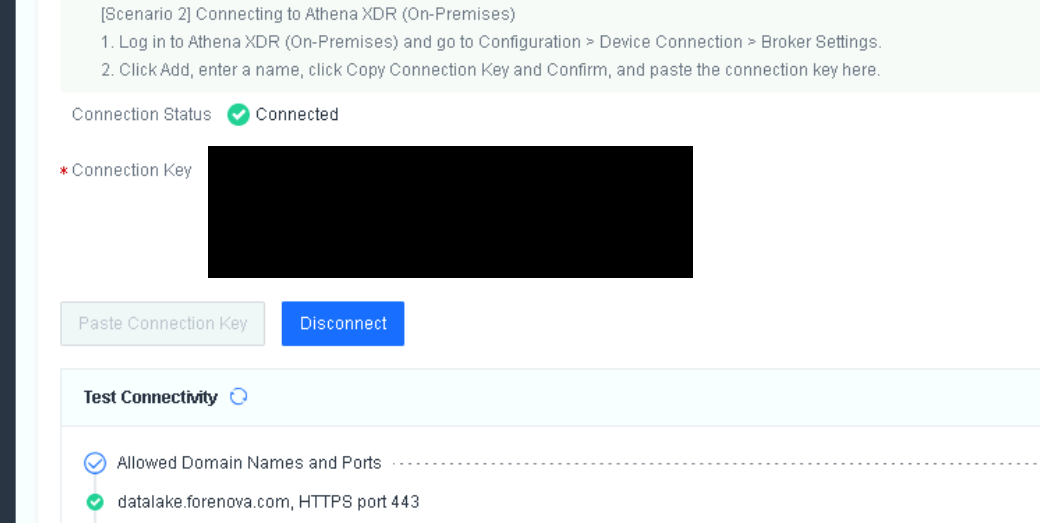
If successfully configured, the status should turn to Connected
Send logfiles to your NovaXDR Broker
When all is set and works you can send log information to the NovaXDR Broker Supported at the moment are: Send log files to the broker in syslog format on TCP or UDP port 514 Retrieve logfiles from a Kafka server and forward to the broker To know what the supported devices are for logging to XDR, please consult with your CSM first.
